This is the tiny developer documentation for Hono.
# Start of Hono documentation
# Hono
Hono - _**means flameπ₯ in Japanese**_ - is a small, simple, and ultrafast web framework built on Web Standards.
It works on any JavaScript runtime: Cloudflare Workers, Fastly Compute, Deno, Bun, Vercel, Netlify, AWS Lambda, Lambda@Edge, and Node.js.
Fast, but not only fast.
```ts twoslash
import { Hono } from 'hono'
const app = new Hono()
app.get('/', (c) => c.text('Hono!'))
export default app
```
## Quick Start
Just run this:
::: code-group
```sh [npm]
npm create hono@latest
```
```sh [yarn]
yarn create hono
```
```sh [pnpm]
pnpm create hono@latest
```
```sh [bun]
bun create hono@latest
```
```sh [deno]
deno init --npm hono@latest
```
:::
## Features
- **Ultrafast** π - The router `RegExpRouter` is really fast. Not using linear loops. Fast.
- **Lightweight** πͺΆ - The `hono/tiny` preset is under 14kB. Hono has zero dependencies and uses only the Web Standards.
- **Multi-runtime** π - Works on Cloudflare Workers, Fastly Compute, Deno, Bun, AWS Lambda, or Node.js. The same code runs on all platforms.
- **Batteries Included** π - Hono has built-in middleware, custom middleware, third-party middleware, and helpers. Batteries included.
- **Delightful DX** π - Super clean APIs. First-class TypeScript support. Now, we've got "Types".
## Use-cases
Hono is a simple web application framework similar to Express, without a frontend.
But it runs on CDN Edges and allows you to construct larger applications when combined with middleware.
Here are some examples of use-cases.
- Building Web APIs
- Proxy of backend servers
- Front of CDN
- Edge application
- Base server for a library
- Full-stack application
## Who is using Hono?
| Project | Platform | What for? |
| ---------------------------------------------------------------------------------- | ------------------ | ----------------------------------------------------------------------------------------------------------- |
| [cdnjs](https://cdnjs.com) | Cloudflare Workers | A free and open-source CDN service. _Hono is used for the API server_. |
| [Cloudflare D1](https://www.cloudflare.com/developer-platform/d1/) | Cloudflare Workers | Serverless SQL databases. _Hono is used for the internal API server_. |
| [Cloudflare Workers KV](https://www.cloudflare.com/developer-platform/workers-kv/) | Cloudflare Workers | Serverless key-value database. _Hono is used for the internal API server_. |
| [BaseAI](https://baseai.dev) | Local AI Server | Serverless AI agent pipes with memory. An open-source agentic AI framework for web. _API server with Hono_. |
| [Unkey](https://unkey.dev) | Cloudflare Workers | An open-source API authentication and authorization. _Hono is used for the API server_. |
| [OpenStatus](https://openstatus.dev) | Bun | An open-source website & API monitoring platform. _Hono is used for the API server_. |
| [Deno Benchmarks](https://deno.com/benchmarks) | Deno | A secure TypeScript runtime built on V8. _Hono is used for benchmarking_. |
| [Clerk](https://clerk.com) | Cloudflare Workers | An open-source User Management Platform. _Hono is used for the API server_. |
And the following.
- [Drivly](https://driv.ly/) - Cloudflare Workers
- [repeat.dev](https://repeat.dev/) - Cloudflare Workers
Do you want to see more? See [Who is using Hono in production?](https://github.com/orgs/honojs/discussions/1510).
## Hono in 1 minute
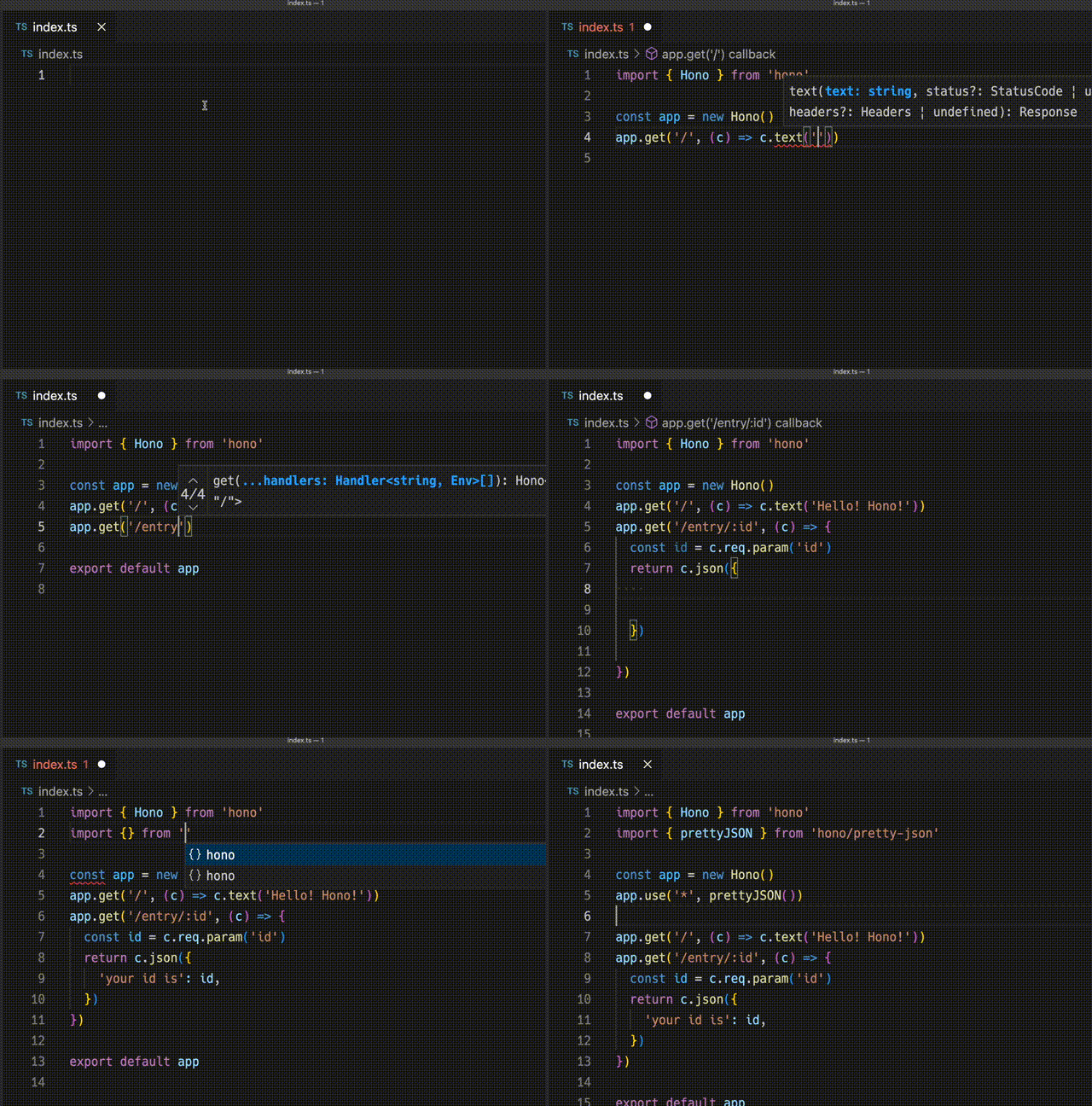
A demonstration to create an application for Cloudflare Workers with Hono.
## Ultrafast
**Hono is the fastest**, compared to other routers for Cloudflare Workers.
```
Hono x 402,820 ops/sec Β±4.78% (80 runs sampled)
itty-router x 212,598 ops/sec Β±3.11% (87 runs sampled)
sunder x 297,036 ops/sec Β±4.76% (77 runs sampled)
worktop x 197,345 ops/sec Β±2.40% (88 runs sampled)
Fastest is Hono
β¨ Done in 28.06s.
```
See [more benchmarks](/docs/concepts/benchmarks).
## Lightweight
**Hono is so small**. With the `hono/tiny` preset, its size is **under 14KB** when minified. There are many middleware and adapters, but they are bundled only when used. For context, the size of Express is 572KB.
```
$ npx wrangler dev --minify ./src/index.ts
β οΈ wrangler 2.20.0
--------------------
⬣ Listening at http://0.0.0.0:8787
- http://127.0.0.1:8787
- http://192.168.128.165:8787
Total Upload: 11.47 KiB / gzip: 4.34 KiB
```
## Multiple routers
**Hono has multiple routers**.
**RegExpRouter** is the fastest router in the JavaScript world. It matches the route using a single large Regex created before dispatch. With **SmartRouter**, it supports all route patterns.
**LinearRouter** registers the routes very quickly, so it's suitable for an environment that initializes applications every time. **PatternRouter** simply adds and matches the pattern, making it small.
See [more information about routes](/docs/concepts/routers).
## Web Standards
Thanks to the use of the **Web Standards**, Hono works on a lot of platforms.
- Cloudflare Workers
- Cloudflare Pages
- Fastly Compute
- Deno
- Bun
- Vercel
- AWS Lambda
- Lambda@Edge
- Others
And by using [a Node.js adapter](https://github.com/honojs/node-server), Hono works on Node.js.
See [more information about Web Standards](/docs/concepts/web-standard).
## Middleware & Helpers
**Hono has many middleware and helpers**. This makes "Write Less, do more" a reality.
Out of the box, Hono provides middleware and helpers for:
- [Basic Authentication](/docs/middleware/builtin/basic-auth)
- [Bearer Authentication](/docs/middleware/builtin/bearer-auth)
- [Body Limit](/docs/middleware/builtin/body-limit)
- [Cache](/docs/middleware/builtin/cache)
- [Compress](/docs/middleware/builtin/compress)
- [Context Storage](/docs/middleware/builtin/context-storage)
- [Cookie](/docs/helpers/cookie)
- [CORS](/docs/middleware/builtin/cors)
- [ETag](/docs/middleware/builtin/etag)
- [html](/docs/helpers/html)
- [JSX](/docs/guides/jsx)
- [JWT Authentication](/docs/middleware/builtin/jwt)
- [Logger](/docs/middleware/builtin/logger)
- [Language](/docs/middleware/builtin/language)
- [Pretty JSON](/docs/middleware/builtin/pretty-json)
- [Secure Headers](/docs/middleware/builtin/secure-headers)
- [SSG](/docs/helpers/ssg)
- [Streaming](/docs/helpers/streaming)
- [GraphQL Server](https://github.com/honojs/middleware/tree/main/packages/graphql-server)
- [Firebase Authentication](https://github.com/honojs/middleware/tree/main/packages/firebase-auth)
- [Sentry](https://github.com/honojs/middleware/tree/main/packages/sentry)
- Others!
For example, adding ETag and request logging only takes a few lines of code with Hono:
```ts
import { Hono } from 'hono'
import { etag } from 'hono/etag'
import { logger } from 'hono/logger'
const app = new Hono()
app.use(etag(), logger())
```
See [more information about Middleware](/docs/concepts/middleware).
## Developer Experience
Hono provides a delightful "**Developer Experience**".
Easy access to Request/Response thanks to the `Context` object.
Moreover, Hono is written in TypeScript. Hono has "**Types**".
For example, the path parameters will be literal types.
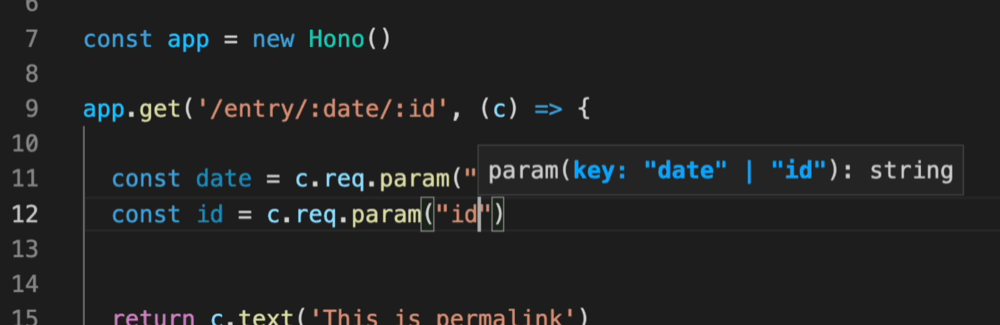
And, the Validator and Hono Client `hc` enable the RPC mode. In RPC mode,
you can use your favorite validator such as Zod and easily share server-side API specs with the client and build type-safe applications.
See [Hono Stacks](/docs/concepts/stacks).
# Helpers
Helpers are available to assist in developing your application. Unlike middleware, they don't act as handlers, but rather provide useful functions.
For instance, here's how to use the [Cookie helper](/docs/helpers/cookie):
```ts
import { getCookie, setCookie } from 'hono/cookie'
const app = new Hono()
app.get('/cookie', (c) => {
const yummyCookie = getCookie(c, 'yummy_cookie')
// ...
setCookie(c, 'delicious_cookie', 'macha')
//
})
```
## Available Helpers
- [Accepts](/docs/helpers/accepts)
- [Adapter](/docs/helpers/adapter)
- [Cookie](/docs/helpers/cookie)
- [css](/docs/helpers/css)
- [Dev](/docs/helpers/dev)
- [Factory](/docs/helpers/factory)
- [html](/docs/helpers/html)
- [JWT](/docs/helpers/jwt)
- [SSG](/docs/helpers/ssg)
- [Streaming](/docs/helpers/streaming)
- [Testing](/docs/helpers/testing)
- [WebSocket](/docs/helpers/websocket)
# Middleware
Middleware works before/after the endpoint `Handler`. We can get the `Request` before dispatching or manipulate the `Response` after dispatching.
## Definition of Middleware
- Handler - should return `Response` object. Only one handler will be called.
- Middleware - should `await next()` and return nothing to call the next Middleware, **or** return a `Response` to early-exit.
The user can register middleware using `app.use` or using `app.HTTP_METHOD` as well as the handlers. For this feature, it's easy to specify the path and the method.
```ts
// match any method, all routes
app.use(logger())
// specify path
app.use('/posts/*', cors())
// specify method and path
app.post('/posts/*', basicAuth())
```
If the handler returns `Response`, it will be used for the end-user and will stop processing.
```ts
app.post('/posts', (c) => c.text('Created!', 201))
```
In this case, four middleware are processed before dispatching like this:
```ts
logger() -> cors() -> basicAuth() -> *handler*
```
## Execution order
The order in which Middleware is executed is determined by the order in which it is registered.
The process before the `next` of the first registered Middleware is executed first,
and the process after the `next` is executed last.
See below.
```ts
app.use(async (_, next) => {
console.log('middleware 1 start')
await next()
console.log('middleware 1 end')
})
app.use(async (_, next) => {
console.log('middleware 2 start')
await next()
console.log('middleware 2 end')
})
app.use(async (_, next) => {
console.log('middleware 3 start')
await next()
console.log('middleware 3 end')
})
app.get('/', (c) => {
console.log('handler')
return c.text('Hello!')
})
```
Result is the following.
```
middleware 1 start
middleware 2 start
middleware 3 start
handler
middleware 3 end
middleware 2 end
middleware 1 end
```
Note that if the handler or any middleware throws, hono will catch it and either pass it to [your app.onError() callback](/docs/api/hono#error-handling) or automatically convert it to a 500 response before returning it up the chain of middleware. This means that next() will never throw, so there is no need to wrap it in a try/catch/finally.
## Built-in Middleware
Hono has built-in middleware.
```ts
import { Hono } from 'hono'
import { poweredBy } from 'hono/powered-by'
import { logger } from 'hono/logger'
import { basicAuth } from 'hono/basic-auth'
const app = new Hono()
app.use(poweredBy())
app.use(logger())
app.use(
'/auth/*',
basicAuth({
username: 'hono',
password: 'acoolproject',
})
)
```
::: warning
In Deno, it is possible to use a different version of middleware than the Hono version, but this can lead to bugs.
For example, this code is not working because the version is different.
```ts
import { Hono } from 'jsr:@hono/hono@4.4.0'
import { upgradeWebSocket } from 'jsr:@hono/hono@4.4.5/deno'
const app = new Hono()
app.get(
'/ws',
upgradeWebSocket(() => ({
// ...
}))
)
```
:::
## Custom Middleware
You can write your own middleware directly inside `app.use()`:
```ts
// Custom logger
app.use(async (c, next) => {
console.log(`[${c.req.method}] ${c.req.url}`)
await next()
})
// Add a custom header
app.use('/message/*', async (c, next) => {
await next()
c.header('x-message', 'This is middleware!')
})
app.get('/message/hello', (c) => c.text('Hello Middleware!'))
```
However, embedding middleware directly within `app.use()` can limit its reusability. Therefore, we can separate our middleware into different files.
To ensure we don't lose type definitions for `context` and `next`, when separating middleware, we can use [`createMiddleware()`](/docs/helpers/factory#createmiddleware) from Hono's factory. This also allows us to type-safely [access data we've `set` in `Context`](https://hono.dev/docs/api/context#set-get) from downstream handlers.
```ts
import { createMiddleware } from 'hono/factory'
const logger = createMiddleware(async (c, next) => {
console.log(`[${c.req.method}] ${c.req.url}`)
await next()
})
```
:::info
Type generics can be used with `createMiddleware`:
```ts
createMiddleware<{Bindings: Bindings}>(async (c, next) =>
```
:::
### Modify the Response After Next
Additionally, middleware can be designed to modify responses if necessary:
```ts
const stripRes = createMiddleware(async (c, next) => {
await next()
c.res = undefined
c.res = new Response('New Response')
})
```
## Context access inside Middleware arguments
To access the context inside middleware arguments, directly use the context parameter provided by `app.use`. See the example below for clarification.
```ts
import { cors } from 'hono/cors'
app.use('*', async (c, next) => {
const middleware = cors({
origin: c.env.CORS_ORIGIN,
})
return middleware(c, next)
})
```
### Extending the Context in Middleware
To extend the context inside middleware, use `c.set`. You can make this type-safe by passing a `{ Variables: { yourVariable: YourVariableType } }` generic argument to the `createMiddleware` function.
```ts
import { createMiddleware } from 'hono/factory'
const echoMiddleware = createMiddleware<{
Variables: {
echo: (str: string) => string
}
}>(async (c, next) => {
c.set('echo', (str) => str)
await next()
})
app.get('/echo', echoMiddleware, (c) => {
return c.text(c.var.echo('Hello!'))
})
```
### Type Inference Across Chained Middleware
When you chain multiple middleware using `.use()`, Hono automatically accumulates the `Variables` types. Route handlers that follow the middleware chain can access all variables from every preceding middleware in a type-safe way:
```ts
import { createMiddleware } from 'hono/factory'
const authMiddleware = createMiddleware<{
Variables: { user: { id: string; name: string } }
}>(async (c, next) => {
c.set('user', { id: '123', name: 'Alice' })
await next()
})
const dbMiddleware = createMiddleware<{
Variables: { db: { query: (sql: string) => Promise } }
}>(async (c, next) => {
c.set('db', {
query: async (sql) => {
/* ... */
},
})
await next()
})
const app = new Hono()
.use(authMiddleware)
.use(dbMiddleware)
.get('/', (c) => {
// Both `user` and `db` are available and type-safe
const user = c.var.user // { id: string; name: string }
const db = c.var.db // { query: (sql: string) => Promise }
return c.json({ user })
})
```
This works because each `.use()` call returns a new Hono instance with the merged type, so the type grows as middleware is chained. This eliminates the need to manually declare a combined `Env` type upfront for most use cases.
## Third-party Middleware
Built-in middleware does not depend on external modules, but third-party middleware can depend on third-party libraries. So with them, we may make a more complex application.
We can explore a variety of [third-party middleware](https://hono.dev/docs/middleware/third-party).
For example, we have GraphQL Server Middleware, Sentry Middleware, Firebase Auth Middleware, and others.
# RPC
The RPC feature allows sharing of the API specifications between the server and the client.
First, export the `typeof` your Hono app (commonly called `AppType`)βor just the routes you want available to the clientβfrom your server code.
By accepting `AppType` as a generic parameter, the Hono Client can infer both the input type(s) specified by the Validator, and the output type(s) emitted by handlers returning `c.json()`.
> [!NOTE]
> For the RPC types to work properly in a monorepo, in both the Client's and Server's tsconfig.json files, set `"strict": true` in `compilerOptions`. [Read more.](https://github.com/honojs/hono/issues/2270#issuecomment-2143745118)
## Server
All you need to do on the server side is to write a validator and create a variable `route`. The following example uses [Zod Validator](https://github.com/honojs/middleware/tree/main/packages/zod-validator).
```ts{1}
const route = app.post(
'/posts',
zValidator(
'form',
z.object({
title: z.string(),
body: z.string(),
})
),
(c) => {
// ...
return c.json(
{
ok: true,
message: 'Created!',
},
201
)
}
)
```
Then, export the type to share the API spec with the Client.
```ts
export type AppType = typeof route
```
## Client
On the Client side, import `hc` and `AppType` first.
```ts
import type { AppType } from '.'
import { hc } from 'hono/client'
```
`hc` is a function to create a client. Pass `AppType` as Generics and specify the server URL as an argument.
```ts
const client = hc('http://localhost:8787/')
```
Call `client.{path}.{method}` and pass the data you wish to send to the server as an argument.
```ts
const res = await client.posts.$post({
form: {
title: 'Hello',
body: 'Hono is a cool project',
},
})
```
The `res` is compatible with the "fetch" Response. You can retrieve data from the server with `res.json()`.
```ts
if (res.ok) {
const data = await res.json()
console.log(data.message)
}
```
### Cookies
To make the client send cookies with every request, add `{ 'init': { 'credentials": 'include' } }` to the options when you're creating the client.
```ts
// client.ts
const client = hc('http://localhost:8787/', {
init: {
credentials: 'include',
},
})
// This request will now include any cookies you might have set
const res = await client.posts.$get({
query: {
id: '123',
},
})
```
## Status code
If you explicitly specify the status code, such as `200` or `404`, in `c.json()`, it will be added as a type for passing to the client.
```ts
// server.ts
const app = new Hono().get(
'/posts',
zValidator(
'query',
z.object({
id: z.string(),
})
),
async (c) => {
const { id } = c.req.valid('query')
const post: Post | undefined = await getPost(id)
if (post === undefined) {
return c.json({ error: 'not found' }, 404) // Specify 404
}
return c.json({ post }, 200) // Specify 200
}
)
export type AppType = typeof app
```
You can get the data by the status code.
```ts
// client.ts
const client = hc('http://localhost:8787/')
const res = await client.posts.$get({
query: {
id: '123',
},
})
if (res.status === 404) {
const data: { error: string } = await res.json()
console.log(data.error)
}
if (res.ok) {
const data: { post: Post } = await res.json()
console.log(data.post)
}
// { post: Post } | { error: string }
type ResponseType = InferResponseType
// { post: Post }
type ResponseType200 = InferResponseType<
typeof client.posts.$get,
200
>
```
## Global Response
Hono RPC client doesn't automatically infer response types from global error handlers like `app.onError()` or global middleware. You can use the `ApplyGlobalResponse` type helper to merge global error response types into all routes.
```ts
import type { ApplyGlobalResponse } from 'hono/client'
const app = new Hono()
.get('/api/users', (c) => c.json({ users: ['alice', 'bob'] }, 200))
.onError((err, c) => c.json({ error: err.message }, 500))
type AppWithErrors = ApplyGlobalResponse<
typeof app,
{
500: { json: { error: string } }
}
>
const client = hc('http://localhost')
```
Now the client knows about both success and error responses:
```ts
const res = await client.api.users.$get()
if (res.ok) {
const data = await res.json() // { users: string[] }
}
// InferResponseType includes the global error type
type ResType = InferResponseType
// { users: string[] } | { error: string }
```
You can also define multiple global error status codes at once:
```ts
type AppWithErrors = ApplyGlobalResponse<
typeof app,
{
401: { json: { error: string; message: string } }
500: { json: { error: string; message: string } }
}
>
```
## Not Found
If you want to use a client, you should not use `c.notFound()` for the Not Found response. The data that the client gets from the server cannot be inferred correctly.
```ts
// server.ts
export const routes = new Hono().get(
'/posts',
zValidator(
'query',
z.object({
id: z.string(),
})
),
async (c) => {
const { id } = c.req.valid('query')
const post: Post | undefined = await getPost(id)
if (post === undefined) {
return c.notFound() // βοΈ
}
return c.json({ post })
}
)
// client.ts
import { hc } from 'hono/client'
const client = hc('/')
const res = await client.posts[':id'].$get({
param: {
id: '123',
},
})
const data = await res.json() // π data is unknown
```
Please use `c.json()` and specify the status code for the Not Found Response.
```ts
export const routes = new Hono().get(
'/posts',
zValidator(
'query',
z.object({
id: z.string(),
})
),
async (c) => {
const { id } = c.req.valid('query')
const post = await getPost(id)
if (!post) {
return c.json({ error: 'not found' }, 404) // Specify 404
}
return c.json({ post }, 200) // Specify 200
}
)
```
Alternatively, you can use module augmentation to extend `NotFoundResponse` interface. This allows `c.notFound()` to return a typed response:
```ts
// server.ts
import { Hono, TypedResponse } from 'hono'
declare module 'hono' {
interface NotFoundResponse
extends Response,
TypedResponse<{ error: string }, 404, 'json'> {}
}
const app = new Hono()
.get('/posts/:id', async (c) => {
const post = await getPost(c.req.param('id'))
if (!post) {
return c.notFound()
}
return c.json({ post }, 200)
})
.notFound((c) => c.json({ error: 'not found' }, 404))
export type AppType = typeof app
```
Now the client can correctly infer the 404 response type.
## Path parameters
You can also handle routes that include path parameters or query values.
```ts
const route = app.get(
'/posts/:id',
zValidator(
'query',
z.object({
page: z.coerce.number().optional(), // coerce to convert to number
})
),
(c) => {
// ...
return c.json({
title: 'Night',
body: 'Time to sleep',
})
}
)
```
Both path parameters and query values **must** be passed as `string`, even if the underlying value is of a different type.
Specify the string you want to include in the path with `param`, and any query values with `query`.
```ts
const res = await client.posts[':id'].$get({
param: {
id: '123',
},
query: {
page: '1', // `string`, converted by the validator to `number`
},
})
```
### Multiple parameters
Handle routes with multiple parameters.
```ts
const route = app.get(
'/posts/:postId/:authorId',
zValidator(
'query',
z.object({
page: z.string().optional(),
})
),
(c) => {
// ...
return c.json({
title: 'Night',
body: 'Time to sleep',
})
}
)
```
Add multiple `['']` to specify params in path.
```ts
const res = await client.posts[':postId'][':authorId'].$get({
param: {
postId: '123',
authorId: '456',
},
query: {},
})
```
### Include slashes
`hc` function does not URL-encode the values of `param`. To include slashes in parameters, use [regular expressions](/docs/api/routing#regexp).
```ts
// client.ts
// Requests /posts/123/456
const res = await client.posts[':id'].$get({
param: {
id: '123/456',
},
})
// server.ts
const route = app.get(
'/posts/:id{.+}',
zValidator(
'param',
z.object({
id: z.string(),
})
),
(c) => {
// id: 123/456
const { id } = c.req.valid('param')
// ...
}
)
```
> [!NOTE]
> Basic path parameters without regular expressions do not match slashes. If you pass a `param` containing slashes using the hc function, the server might not route as intended. Encoding the parameters using `encodeURIComponent` is the recommended approach to ensure correct routing.
## Headers
You can append the headers to the request.
```ts
const res = await client.search.$get(
{
//...
},
{
headers: {
'X-Custom-Header': 'Here is Hono Client',
'X-User-Agent': 'hc',
},
}
)
```
To add a common header to all requests, specify it as an argument to the `hc` function.
```ts
const client = hc('/api', {
headers: {
Authorization: 'Bearer TOKEN',
},
})
```
## `init` option
You can pass the fetch's `RequestInit` object to the request as the `init` option. Below is an example of aborting a Request.
```ts
import { hc } from 'hono/client'
const client = hc('http://localhost:8787/')
const abortController = new AbortController()
const res = await client.api.posts.$post(
{
json: {
// Request body
},
},
{
// RequestInit object
init: {
signal: abortController.signal,
},
}
)
// ...
abortController.abort()
```
::: info
A `RequestInit` object defined by `init` takes the highest priority. It could be used to overwrite things set by other options like `body | method | headers`.
:::
## `$url()`
You can get a `URL` object for accessing the endpoint by using `$url()`.
::: warning
You have to pass in an absolute URL for this to work. Passing in a relative URL `/` will result in the following error.
`Uncaught TypeError: Failed to construct 'URL': Invalid URL`
```ts
// β Will throw error
const client = hc('/')
client.api.post.$url()
// β Will work as expected
const client = hc('http://localhost:8787/')
client.api.post.$url()
```
:::
```ts
const route = app
.get('/api/posts', (c) => c.json({ posts }))
.get('/api/posts/:id', (c) => c.json({ post }))
const client = hc('http://localhost:8787/')
let url = client.api.posts.$url()
console.log(url.pathname) // `/api/posts`
url = client.api.posts[':id'].$url({
param: {
id: '123',
},
})
console.log(url.pathname) // `/api/posts/123`
```
### Typed URL
You can pass the base URL as the second type parameter to `hc` to get more precise URL types:
```ts
const client = hc(
'http://localhost:8787/'
)
const url = client.api.posts.$url()
// url is TypedURL with precise type information
// including protocol, host, and path
```
This is useful when you want to use the URL as a type-safe key for libraries like SWR.
## `$path()`
`$path()` is similar to `$url()`, but returns a path string instead of a `URL` object. Unlike `$url()`, it does not include the base URL origin, so it works regardless of the base URL you pass to `hc`.
```ts
const route = app
.get('/api/posts', (c) => c.json({ posts }))
.get('/api/posts/:id', (c) => c.json({ post }))
const client = hc('http://localhost:8787/')
let path = client.api.posts.$path()
console.log(path) // `/api/posts`
path = client.api.posts[':id'].$path({
param: {
id: '123',
},
})
console.log(path) // `/api/posts/123`
```
You can also pass query parameters:
```ts
const path = client.api.posts.$path({
query: {
page: '1',
limit: '10',
},
})
console.log(path) // `/api/posts?page=1&limit=10`
```
## File Uploads
You can upload files using a form body:
```ts
// client
const res = await client.user.picture.$put({
form: {
file: new File([fileToUpload], filename, {
type: fileToUpload.type,
}),
},
})
```
```ts
// server
const route = app.put(
'/user/picture',
zValidator(
'form',
z.object({
file: z.instanceof(File),
})
)
// ...
)
```
## Custom `fetch` method
You can set the custom `fetch` method.
In the following example script for Cloudflare Worker, the Service Bindings' `fetch` method is used instead of the default `fetch`.
```toml
# wrangler.toml
services = [
{ binding = "AUTH", service = "auth-service" },
]
```
```ts
// src/client.ts
const client = hc('http://localhost', {
fetch: c.env.AUTH.fetch.bind(c.env.AUTH),
})
```
## Custom query serializer
You can customize how query parameters are serialized using the `buildSearchParams` option. This is useful when you need bracket notation for arrays or other custom formats:
```ts
const client = hc('http://localhost', {
buildSearchParams: (query) => {
const searchParams = new URLSearchParams()
for (const [k, v] of Object.entries(query)) {
if (v === undefined) {
continue
}
if (Array.isArray(v)) {
v.forEach((item) => searchParams.append(`${k}[]`, item))
} else {
searchParams.set(k, v)
}
}
return searchParams
},
})
```
## Infer
Use `InferRequestType` and `InferResponseType` to know the type of object to be requested and the type of object to be returned.
```ts
import type { InferRequestType, InferResponseType } from 'hono/client'
// InferRequestType
const $post = client.todo.$post
type ReqType = InferRequestType['form']
// InferResponseType
type ResType = InferResponseType
```
## Parsing a Response with type-safety helper
You can use `parseResponse()` helper to easily parse a Response from `hc` with type-safety.
```ts
import { parseResponse, DetailedError } from 'hono/client'
// result contains the parsed response body (automatically parsed based on Content-Type)
const result = await parseResponse(client.hello.$get()).catch(
(e: DetailedError) => {
console.error(e)
}
)
// parseResponse automatically throws an error if response is not ok
```
## Using SWR
You can also use a React Hook library such as [SWR](https://swr.vercel.app).
```tsx
import useSWR from 'swr'
import { hc } from 'hono/client'
import type { InferRequestType } from 'hono/client'
import type { AppType } from '../functions/api/[[route]]'
const App = () => {
const client = hc('/api')
const $get = client.hello.$get
const fetcher =
(arg: InferRequestType) => async () => {
const res = await $get(arg)
return await res.json()
}
const { data, error, isLoading } = useSWR(
'api-hello',
fetcher({
query: {
name: 'SWR',
},
})
)
if (error) return
failed to load
if (isLoading) return
loading...
return
{data?.message}
}
export default App
```
## Using RPC with larger applications
In the case of a larger application, such as the example mentioned in [Building a larger application](/docs/guides/best-practices#building-a-larger-application), you need to be careful about the type of inference.
A simple way to do this is to chain the handlers so that the types are always inferred.
```ts
// authors.ts
import { Hono } from 'hono'
const app = new Hono()
.get('/', (c) => c.json('list authors'))
.post('/', (c) => c.json('create an author', 201))
.get('/:id', (c) => c.json(`get ${c.req.param('id')}`))
export default app
```
```ts
// books.ts
import { Hono } from 'hono'
const app = new Hono()
.get('/', (c) => c.json('list books'))
.post('/', (c) => c.json('create a book', 201))
.get('/:id', (c) => c.json(`get ${c.req.param('id')}`))
export default app
```
You can then import the sub-routers as you usually would, and make sure you chain their handlers as well, since this is the top level of the app in this case, this is the type we'll want to export.
```ts
// index.ts
import { Hono } from 'hono'
import authors from './authors'
import books from './books'
const app = new Hono()
const routes = app.route('/authors', authors).route('/books', books)
export default app
export type AppType = typeof routes
```
You can now create a new client using the registered AppType and use it as you would normally.
## Known issues
### IDE performance
When using RPC, the more routes you have, the slower your IDE will become. One of the main reasons for this is that massive amounts of type instantiations are executed to infer the type of your app.
For example, suppose your app has a route like this:
```ts
// app.ts
export const app = new Hono().get('foo/:id', (c) =>
c.json({ ok: true }, 200)
)
```
Hono will infer the type as follows:
```ts
export const app = Hono().get<
'foo/:id',
'foo/:id',
JSONRespondReturn<{ ok: boolean }, 200>,
BlankInput,
BlankEnv
>('foo/:id', (c) => c.json({ ok: true }, 200))
```
This is a type instantiation for a single route. While the user doesn't need to write these type arguments manually, which is a good thing, it's known that type instantiation takes much time. `tsserver` used in your IDE does this time consuming task every time you use the app. If you have a lot of routes, this can slow down your IDE significantly.
However, we have some tips to mitigate this issue.
#### Hono version mismatch
If your backend is separated from the frontend and lives in a different directory, you need to ensure that the Hono versions match. If you use one Hono version on the backend and another on the frontend, you'll run into issues such as "_Type instantiation is excessively deep and possibly infinite_".

#### TypeScript project references
Like in the case of [Hono version mismatch](#hono-version-mismatch), you'll run into issues if your backend and frontend are separate. If you want to access code from the backend (`AppType`, for example) on the frontend, you need to use [project references](https://www.typescriptlang.org/docs/handbook/project-references.html). TypeScript's project references allow one TypeScript codebase to access and use code from another TypeScript codebase. _(source: [Hono RPC And TypeScript Project References](https://catalins.tech/hono-rpc-in-monorepos/))_.
#### Compile your code before using it (recommended)
`tsc` can do heavy tasks like type instantiation at compile time! Then, `tsserver` doesn't need to instantiate all the type arguments every time you use it. It will make your IDE a lot faster!
Compiling your client including the server app gives you the best performance. Put the following code in your project:
```ts
import { app } from './app'
import { hc } from 'hono/client'
// this is a trick to calculate the type when compiling
export type Client = ReturnType>
export const hcWithType = (...args: Parameters): Client =>
hc(...args)
```
After compiling, you can use `hcWithType` instead of `hc` to get the client with the type already calculated.
```ts
const client = hcWithType('http://localhost:8787/')
const res = await client.posts.$post({
form: {
title: 'Hello',
body: 'Hono is a cool project',
},
})
```
If your project is a monorepo, this solution does fit well. Using a tool like [`turborepo`](https://turbo.build/repo/docs), you can easily separate the server project and the client project and get better integration managing dependencies between them. Here is [a working example](https://github.com/m-shaka/hono-rpc-perf-tips-example).
You can also coordinate your build process manually with tools like `concurrently` or `npm-run-all`.
#### Specify type arguments manually
This is a bit cumbersome, but you can specify type arguments manually to avoid type instantiation.
```ts
const app = new Hono().get<'foo/:id'>('foo/:id', (c) =>
c.json({ ok: true }, 200)
)
```
Specifying just a single type argument makes a difference in performance, while it may take you a lot of time and effort if you have a lot of routes.
#### Split your app and client into multiple files
As described in [Using RPC with larger applications](#using-rpc-with-larger-applications), you can split your app into multiple apps. You can also create a client for each app:
```ts
// authors-cli.ts
import { app as authorsApp } from './authors'
import { hc } from 'hono/client'
const authorsClient = hc('/authors')
// books-cli.ts
import { app as booksApp } from './books'
import { hc } from 'hono/client'
const booksClient = hc('/books')
```
This way, `tsserver` doesn't need to instantiate types for all routes at once.
# Best Practices
Hono is very flexible. You can write your app as you like.
However, there are best practices that are better to follow.
## Don't make "Controllers" when possible
When possible, you should not create "Ruby on Rails-like Controllers".
```ts
// π
// A RoR-like Controller
const booksList = (c: Context) => {
return c.json('list books')
}
app.get('/books', booksList)
```
The issue is related to types. For example, the path parameter cannot be inferred in the Controller without writing complex generics.
```ts
// π
// A RoR-like Controller
const bookPermalink = (c: Context) => {
const id = c.req.param('id') // Can't infer the path param
return c.json(`get ${id}`)
}
```
Therefore, you don't need to create RoR-like controllers and should write handlers directly after path definitions.
```ts
// π
app.get('/books/:id', (c) => {
const id = c.req.param('id') // Can infer the path param
return c.json(`get ${id}`)
})
```
## `factory.createHandlers()` in `hono/factory`
If you still want to create a RoR-like Controller, use `factory.createHandlers()` in [`hono/factory`](/docs/helpers/factory). If you use this, type inference will work correctly.
```ts
import { createFactory } from 'hono/factory'
import { logger } from 'hono/logger'
// ...
// π
const factory = createFactory()
const middleware = factory.createMiddleware(async (c, next) => {
c.set('foo', 'bar')
await next()
})
const handlers = factory.createHandlers(logger(), middleware, (c) => {
return c.json(c.var.foo)
})
app.get('/api', ...handlers)
```
## Building a larger application
Use `app.route()` to build a larger application without creating "Ruby on Rails-like Controllers".
If your application has `/authors` and `/books` endpoints and you wish to separate files from `index.ts`, create `authors.ts` and `books.ts`.
```ts
// authors.ts
import { Hono } from 'hono'
const app = new Hono()
app.get('/', (c) => c.json('list authors'))
app.post('/', (c) => c.json('create an author', 201))
app.get('/:id', (c) => c.json(`get ${c.req.param('id')}`))
export default app
```
```ts
// books.ts
import { Hono } from 'hono'
const app = new Hono()
app.get('/', (c) => c.json('list books'))
app.post('/', (c) => c.json('create a book', 201))
app.get('/:id', (c) => c.json(`get ${c.req.param('id')}`))
export default app
```
Then, import them and mount on the paths `/authors` and `/books` with `app.route()`.
```ts
// index.ts
import { Hono } from 'hono'
import authors from './authors'
import books from './books'
const app = new Hono()
// π
app.route('/authors', authors)
app.route('/books', books)
export default app
```
### If you want to use RPC features
The code above works well for normal use cases.
However, if you want to use the `RPC` feature, you can get the correct type by chaining as follows.
```ts
// authors.ts
import { Hono } from 'hono'
const app = new Hono()
.get('/', (c) => c.json('list authors'))
.post('/', (c) => c.json('create an author', 201))
.get('/:id', (c) => c.json(`get ${c.req.param('id')}`))
export default app
export type AppType = typeof app
```
If you pass the type of the `app` to `hc`, it will get the correct type.
```ts
import type { AppType } from './authors'
import { hc } from 'hono/client'
// π
const client = hc('http://localhost') // Typed correctly
```
For more detailed information, please see [the RPC page](/docs/guides/rpc#using-rpc-with-larger-applications).
# Client Components
`hono/jsx` supports not only server side but also client side. This means that it is possible to create an interactive UI that runs in the browser. We call it Client Components or `hono/jsx/dom`.
It is fast and very small. The counter program in `hono/jsx/dom` is only 2.8KB with Brotli compression, but 47.8KB for React.
This section introduces Client Components-specific features.
## Counter example
Here is an example of a simple counter, the same code works as in React.
```tsx
import { useState } from 'hono/jsx'
import { render } from 'hono/jsx/dom'
function Counter() {
const [count, setCount] = useState(0)
return (
Count: {count}
)
}
function App() {
return (
)
}
const root = document.getElementById('root')
render(, root)
```
## `render()`
You can use `render()` to insert JSX components within a specified HTML element.
```tsx
render(, container)
```
You can see full example code here: [Counter example](https://github.com/honojs/examples/tree/main/hono-vite-jsx).
## Hooks compatible with React
hono/jsx/dom has Hooks that are compatible or partially compatible with React. You can learn about these APIs by looking at [the React documentation](https://react.dev/reference/react/hooks).
- `useState()`
- `useEffect()`
- `useRef()`
- `useCallback()`
- `use()`
- `startTransition()`
- `useTransition()`
- `useDeferredValue()`
- `useMemo()`
- `useLayoutEffect()`
- `useReducer()`
- `useDebugValue()`
- `createElement()`
- `memo()`
- `isValidElement()`
- `useId()`
- `createRef()`
- `forwardRef()`
- `useImperativeHandle()`
- `useSyncExternalStore()`
- `useInsertionEffect()`
- `useFormStatus()`
- `useActionState()`
- `useOptimistic()`
## `startViewTransition()` family
The `startViewTransition()` family contains original hooks and functions to handle [View Transitions API](https://developer.mozilla.org/en-US/docs/Web/API/View_Transitions_API) easily. The followings are examples of how to use them.
### 1. An easiest example
You can write a transition using the `document.startViewTransition` shortly with the `startViewTransition()`.
```tsx
import { useState, startViewTransition } from 'hono/jsx'
import { css, Style } from 'hono/css'
export default function App() {
const [showLargeImage, setShowLargeImage] = useState(false)
return (
<>
{!showLargeImage ? (
) : (
)}
>
)
}
```
### 2. Using `viewTransition()` with `keyframes()`
The `viewTransition()` function allows you to get the unique `view-transition-name`.
You can use it with the `keyframes()`, The `::view-transition-old()` is converted to `::view-transition-old(${uniqueName))`.
```tsx
import { useState, startViewTransition } from 'hono/jsx'
import { viewTransition } from 'hono/jsx/dom/css'
import { css, keyframes, Style } from 'hono/css'
const rotate = keyframes`
from {
rotate: 0deg;
}
to {
rotate: 360deg;
}
`
export default function App() {
const [showLargeImage, setShowLargeImage] = useState(false)
const [transitionNameClass] = useState(() =>
viewTransition(css`
::view-transition-old() {
animation-name: ${rotate};
}
::view-transition-new() {
animation-name: ${rotate};
}
`)
)
return (
<>
{!showLargeImage ? (
) : (
)}
>
)
}
```
### 3. Using `useViewTransition`
If you want to change the style only during the animation. You can use `useViewTransition()`. This hook returns the `[boolean, (callback: () => void) => void]`, and they are the `isUpdating` flag and the `startViewTransition()` function.
When this hook is used, the Component is evaluated at the following two times.
- Inside the callback of a call to `startViewTransition()`.
- When [the `finish` promise becomes fulfilled](https://developer.mozilla.org/en-US/docs/Web/API/ViewTransition/finished)
```tsx
import { useState, useViewTransition } from 'hono/jsx'
import { viewTransition } from 'hono/jsx/dom/css'
import { css, keyframes, Style } from 'hono/css'
const rotate = keyframes`
from {
rotate: 0deg;
}
to {
rotate: 360deg;
}
`
export default function App() {
const [isUpdating, startViewTransition] = useViewTransition()
const [showLargeImage, setShowLargeImage] = useState(false)
const [transitionNameClass] = useState(() =>
viewTransition(css`
::view-transition-old() {
animation-name: ${rotate};
}
::view-transition-new() {
animation-name: ${rotate};
}
`)
)
return (
<>
{!showLargeImage ? (
) : (
)}
>
)
}
```
## The `hono/jsx/dom` runtime
There is a small JSX Runtime for Client Components. Using this will result in smaller bundled results than using `hono/jsx`. Specify `hono/jsx/dom` in `tsconfig.json`. For Deno, modify the deno.json.
```json
{
"compilerOptions": {
"jsx": "react-jsx",
"jsxImportSource": "hono/jsx/dom"
}
}
```
Alternatively, you can specify `hono/jsx/dom` in the esbuild transform options in `vite.config.ts`.
```ts
import { defineConfig } from 'vite'
export default defineConfig({
esbuild: {
jsxImportSource: 'hono/jsx/dom',
},
})
```
# Testing
[Vitest]: https://vitest.dev/
Testing is important.
In actuality, it is easy to test Hono's applications.
The way to create a test environment differs from each runtime, but the basic steps are the same.
In this section, let's test with Cloudflare Workers and [Vitest].
::: tip
Cloudflare recommends using [Vitest] with [@cloudflare/vitest-pool-workers](https://www.npmjs.com/package/@cloudflare/vitest-pool-workers). For more details, please refer to [Vitest integration](https://developers.cloudflare.com/workers/testing/vitest-integration/) in the Cloudflare Workers docs.
:::
## Request and Response
All you need to do is create a Request and pass it to the Hono application to validate the Response. You can then use the useful `app.request` method.
::: tip
For a typed test client see the [testing helper](/docs/helpers/testing).
:::
For example, consider an application that provides the following REST API.
```ts
app.get('/posts', (c) => {
return c.text('Many posts')
})
app.post('/posts', (c) => {
return c.json(
{
message: 'Created',
},
201,
{
'X-Custom': 'Thank you',
}
)
})
```
Make a request to `GET /posts` and test the response.
```ts
describe('Example', () => {
test('GET /posts', async () => {
const res = await app.request('/posts')
expect(res.status).toBe(200)
expect(await res.text()).toBe('Many posts')
})
})
```
To make a request to `POST /posts`, do the following.
```ts
test('POST /posts', async () => {
const res = await app.request('/posts', {
method: 'POST',
})
expect(res.status).toBe(201)
expect(res.headers.get('X-Custom')).toBe('Thank you')
expect(await res.json()).toEqual({
message: 'Created',
})
})
```
To make a request to `POST /posts` with `JSON` data, do the following.
```ts
test('POST /posts', async () => {
const res = await app.request('/posts', {
method: 'POST',
body: JSON.stringify({ message: 'hello hono' }),
headers: new Headers({ 'Content-Type': 'application/json' }),
})
expect(res.status).toBe(201)
expect(res.headers.get('X-Custom')).toBe('Thank you')
expect(await res.json()).toEqual({
message: 'Created',
})
})
```
To make a request to `POST /posts` with `multipart/form-data` data, do the following.
```ts
test('POST /posts', async () => {
const formData = new FormData()
formData.append('message', 'hello')
const res = await app.request('/posts', {
method: 'POST',
body: formData,
})
expect(res.status).toBe(201)
expect(res.headers.get('X-Custom')).toBe('Thank you')
expect(await res.json()).toEqual({
message: 'Created',
})
})
```
You can also pass an instance of the Request class.
```ts
test('POST /posts', async () => {
const req = new Request('http://localhost/posts', {
method: 'POST',
})
const res = await app.request(req)
expect(res.status).toBe(201)
expect(res.headers.get('X-Custom')).toBe('Thank you')
expect(await res.json()).toEqual({
message: 'Created',
})
})
```
In this way, you can test it as like an End-to-End.
## Env
To set `c.env` for testing, you can pass it as the 3rd parameter to `app.request`. This is useful for mocking values like [Cloudflare Workers Bindings](https://hono.dev/getting-started/cloudflare-workers#bindings):
```ts
const MOCK_ENV = {
API_HOST: 'example.com',
DB: {
prepare: () => {
/* mocked D1 */
},
},
}
test('GET /posts', async () => {
const res = await app.request('/posts', {}, MOCK_ENV)
})
```
# JSX
You can write HTML with JSX syntax with `hono/jsx`.
Although `hono/jsx` works on the client, you will probably use it most often when rendering content on the server side. Here are some things related to JSX that are common to both server and client.
## Settings
To use JSX, modify the `tsconfig.json`:
`tsconfig.json`:
```json
{
"compilerOptions": {
"jsx": "react-jsx",
"jsxImportSource": "hono/jsx"
}
}
```
Alternatively, use the pragma directives:
```ts
/** @jsx jsx */
/** @jsxImportSource hono/jsx */
```
For Deno, you have to modify the `deno.json` instead of the `tsconfig.json`:
```json
{
"compilerOptions": {
"jsx": "precompile",
"jsxImportSource": "@hono/hono/jsx"
}
}
```
## Usage
:::info
If you are coming straight from the [Quick Start](/docs/#quick-start), the main file has a `.ts` extension - you need to change it to `.tsx` - otherwise you will not be able to run the application at all. You should additionally modify the `package.json` (or `deno.json` if you are using Deno) to reflect that change (e.g. instead of having `bun run --hot src/index.ts` in dev script, you should have `bun run --hot src/index.tsx`).
:::
`index.tsx`:
```tsx
import { Hono } from 'hono'
import type { FC } from 'hono/jsx'
const app = new Hono()
const Layout: FC = (props) => {
return (
{props.children}
)
}
const Top: FC<{ messages: string[] }> = (props: {
messages: string[]
}) => {
return (
Hello Hono!
{props.messages.map((message) => {
return
{message}!!
})}
)
}
app.get('/', (c) => {
const messages = ['Good Morning', 'Good Evening', 'Good Night']
return c.html()
})
export default app
```
## Metadata hoisting
You can write document metadata tags such as ``, ``, and `` directly inside your components. These tags will be automatically hoisted to the `` section of the document. This is especially useful when the `` element is rendered far from the component that determines the appropriate metadata.
```tsx
import { Hono } from 'hono'
const app = new Hono()
app.use('*', async (c, next) => {
c.setRenderer((content) => {
return c.html(
{content}
)
})
await next()
})
app.get('/about', (c) => {
return c.render(
<>
About Page
about page content
>
)
})
export default app
```
:::info
When hoisting occurs, existing elements are not removed. Elements appearing later are added to the end. For example, if you have `Default` in your `` and a component renders `Page Title`, both titles will appear in the head.
:::
## Fragment
Use Fragment to group multiple elements without adding extra nodes:
```tsx
import { Fragment } from 'hono/jsx'
const List = () => (
first child
second child
third child
)
```
Or you can write it with `<>>` if it sets up properly.
```tsx
const List = () => (
<>
first child
second child
third child
>
)
```
## `PropsWithChildren`
You can use `PropsWithChildren` to correctly infer a child element in a function component.
```tsx
import { PropsWithChildren } from 'hono/jsx'
type Post = {
id: number
title: string
}
function Component({ title, children }: PropsWithChildren) {
return (
{title}
{children}
)
}
```
## Inserting Raw HTML
To directly insert HTML, use `dangerouslySetInnerHTML`:
```tsx
app.get('/foo', (c) => {
const inner = { __html: 'JSX · SSR' }
const Div =
})
```
## Memoization
Optimize your components by memoizing computed strings using `memo`:
```tsx
import { memo } from 'hono/jsx'
const Header = memo(() => Welcome to Hono)
const Footer = memo(() => )
const Layout = (
Hono is cool!
)
```
## Context
By using `useContext`, you can share data globally across any level of the Component tree without passing values through props.
```tsx
import type { FC } from 'hono/jsx'
import { createContext, useContext } from 'hono/jsx'
const themes = {
light: {
color: '#000000',
background: '#eeeeee',
},
dark: {
color: '#ffffff',
background: '#222222',
},
}
const ThemeContext = createContext(themes.light)
const Button: FC = () => {
const theme = useContext(ThemeContext)
return
}
const Toolbar: FC = () => {
return (
)
}
// ...
app.get('/', (c) => {
return c.html(
)
})
```
## Async Component
`hono/jsx` supports an Async Component, so you can use `async`/`await` in your component.
If you render it with `c.html()`, it will await automatically.
```tsx
const AsyncComponent = async () => {
await new Promise((r) => setTimeout(r, 1000)) // sleep 1s
return
Done!
}
app.get('/', (c) => {
return c.html(
)
})
```
## Suspense
The React-like `Suspense` feature is available.
If you wrap the async component with `Suspense`, the content in the fallback will be rendered first, and once the Promise is resolved, the awaited content will be displayed.
You can use it with `renderToReadableStream()`.
```tsx
import { renderToReadableStream, Suspense } from 'hono/jsx/streaming'
//...
app.get('/', (c) => {
const stream = renderToReadableStream(
loading...}>
)
return c.body(stream, {
headers: {
'Content-Type': 'text/html; charset=UTF-8',
'Transfer-Encoding': 'chunked',
},
})
})
```
## ErrorBoundary
You can catch errors in child components using `ErrorBoundary`.
In the example below, it will show the content specified in `fallback` if an error occurs.
```tsx
function SyncComponent() {
throw new Error('Error')
return
Hello
}
app.get('/sync', async (c) => {
return c.html(
Out of Service}>
)
})
```
`ErrorBoundary` can also be used with async components and `Suspense`.
```tsx
async function AsyncComponent() {
await new Promise((resolve) => setTimeout(resolve, 2000))
throw new Error('Error')
return
Hello
}
app.get('/with-suspense', async (c) => {
return c.html(
Out of Service}>
Loading...}>
)
})
```
## StreamingContext
You can use `StreamingContext` to provide configuration for streaming components like `Suspense` and `ErrorBoundary`. This is useful for adding nonce values to script tags generated by these components for Content Security Policy (CSP).
```tsx
import { Suspense, StreamingContext } from 'hono/jsx/streaming'
// ...
app.get('/', (c) => {
const stream = renderToReadableStream(
Loading...}>
)
return c.body(stream, {
headers: {
'Content-Type': 'text/html; charset=UTF-8',
'Transfer-Encoding': 'chunked',
'Content-Security-Policy':
"script-src 'nonce-random-nonce-value'",
},
})
})
```
The `scriptNonce` value will be automatically added to any `
) : (
)}

Hello
)
})
```
In order to build the script properly, you can use the example config file `vite.config.ts` as shown below.
```ts
import pages from '@hono/vite-cloudflare-pages'
import devServer from '@hono/vite-dev-server'
import { defineConfig } from 'vite'
export default defineConfig(({ mode }) => {
if (mode === 'client') {
return {
build: {
rollupOptions: {
input: './src/client.ts',
output: {
entryFileNames: 'static/client.js',
},
},
},
}
} else {
return {
plugins: [
pages(),
devServer({
entry: 'src/index.tsx',
}),
],
}
}
})
```
You can run the following command to build the server and client script.
```sh
vite build --mode client && vite build
```
## Cloudflare Pages Middleware
Cloudflare Pages uses its own [middleware](https://developers.cloudflare.com/pages/functions/middleware/) system that is different from Hono's middleware. You can enable it by exporting `onRequest` in a file named `_middleware.ts` like this:
```ts
// functions/_middleware.ts
export async function onRequest(pagesContext) {
console.log(`You are accessing ${pagesContext.request.url}`)
return await pagesContext.next()
}
```
Using `handleMiddleware`, you can use Hono's middleware as Cloudflare Pages middleware.
```ts
// functions/_middleware.ts
import { handleMiddleware } from 'hono/cloudflare-pages'
export const onRequest = handleMiddleware(async (c, next) => {
console.log(`You are accessing ${c.req.url}`)
await next()
})
```
You can also use built-in and 3rd party middleware for Hono. For example, to add Basic Authentication, you can use [Hono's Basic Authentication Middleware](/docs/middleware/builtin/basic-auth).
```ts
// functions/_middleware.ts
import { handleMiddleware } from 'hono/cloudflare-pages'
import { basicAuth } from 'hono/basic-auth'
export const onRequest = handleMiddleware(
basicAuth({
username: 'hono',
password: 'acoolproject',
})
)
```
If you want to apply multiple middleware, you can write it like this:
```ts
import { handleMiddleware } from 'hono/cloudflare-pages'
// ...
export const onRequest = [
handleMiddleware(middleware1),
handleMiddleware(middleware2),
handleMiddleware(middleware3),
]
```
### Accessing `EventContext`
You can access [`EventContext`](https://developers.cloudflare.com/pages/functions/api-reference/#eventcontext) object via `c.env` in `handleMiddleware`.
```ts
// functions/_middleware.ts
import { handleMiddleware } from 'hono/cloudflare-pages'
export const onRequest = [
handleMiddleware(async (c, next) => {
c.env.eventContext.data.user = 'Joe'
await next()
}),
]
```
Then, you can access the data value in via `c.env.eventContext` in the handler:
```ts
// functions/api/[[route]].ts
import type { EventContext } from 'hono/cloudflare-pages'
import { handle } from 'hono/cloudflare-pages'
// ...
type Env = {
Bindings: {
eventContext: EventContext
}
}
const app = new Hono().basePath('/api')
app.get('/hello', (c) => {
return c.json({
message: `Hello, ${c.env.eventContext.data.user}!`, // 'Joe'
})
})
export const onRequest = handle(app)
```
# WebAssembly (w/ WASI)
[WebAssembly][wasm-core] is a secure, sandboxed, portable runtime that runs inside and outside web browsers.
In practice:
- Languages (like JavaScript) _compile to_ WebAssembly (`.wasm` files)
- WebAssembly runtimes (like [`wasmtime`][wasmtime] or [`jco`][jco]) enable _running_ WebAssembly binaries
While core WebAssembly has _no_ access to things like the local filesystem or sockets, the [WebAssembly System Interface][wasi]
steps in to enable defining a platform under WebAssebly workloads.
This means that _with_ WASI, WebAssembly can operate on files, sockets, and much more.
::: info
Want to peek at the WASI interface yourself? check out [`wasi:http`][wasi-http]
:::
Support for WebAssembly w/ WASI in JS is powered by [StarlingMonkey][sm], and thanks to the focus on Web standards in
both StarlingMonkey and Hono, **Hono works \*out of the box with WASI-enabled WebAssembly ecosystems.**
[sm]: https://github.com/bytecodealliance/StarlingMonkey
[wasm-core]: https://webassembly.org/
[wasi]: https://wasi.dev/
[bca]: https://bytecodealliance.org/
[wasi-http]: https://github.com/WebAssembly/wasi-http
## 1. Setup
The WebAssembly JS ecosystem provides tooling to make it easy to get started building WASI-enabled WebAssembly components:
- [StarlingMonkey][sm] is a fork of [SpiderMonkey][spidermonkey] that compiles to WebAssembly and enables components
- [`componentize-js`][componentize-js] turns JavaScript ES modules into WebAssembly components
- [`jco`][jco] is a multi-tool that builds components, generates types, and runs components in environments like Node.js or the browser
::: info
WebAssembly has an open ecosystem and is open source, with core projects stewarded primarily by the [Bytecode Alliance][bca] and its members.
New features, issues, pull requests and other types of contributions are always welcome.
:::
While a starter for Hono on WebAssembly is not yet available, you can start a WebAssembly Hono project just like any other:
::: code-group
```sh [npm]
mkdir my-app
cd my-app
npm init
npm i hono
npm i -D @bytecodealliance/jco @bytecodealliance/componentize-js @bytecodealliance/jco-std
npm i -D rolldown
```
````sh [yarn]
mkdir my-app
cd my-app
npm init
yarn add hono
yarn add -D @bytecodealliance/jco @bytecodealliance/componentize-js @bytecodealliance/jco-std
yarn add -D rolldown
G```
```sh [pnpm]
mkdir my-app
cd my-app
pnpm init --init-type module
pnpm add hono
pnpm add -D @bytecodealliance/jco @bytecodealliance/componentize-js @bytecodealliance/jco-std
pnpm add -D rolldown
````
```sh [bun]
mkdir my-app
cd my-app
npm init
bun add hono
bun add -D @bytecodealliance/jco @bytecodealliance/componentize-js @bytecodealliance/jco-std
```
:::
::: info
To ensure your project uses ES modules, ensure `type` is set to `"module"` in `package.json`
:::
After entering the `my-app` folder, install dependencies, and initialize TypeScript:
::: code-group
```sh [npm]
npm i
npx tsc --init
```
```sh [yarn]
yarn
yarn tsc --init
```
```sh [pnpm]
pnpm i
pnpm exec --init
```
```sh [bun]
bun i
```
:::
Once you have a basic TypeScript configuration file (`tsconfig.json`), please ensure it has the following configuration:
- `compilerOptions.module` set to `"nodenext"`
Since `componentize-js` (and `jco` which re-uses it) supports only single JS files,
bundling is necessary, so [`rolldown`][rolldown] can be used to create a single file bundle.
A Rolldown configuration (`rolldown.config.mjs`) like the following can be used:
```js
import { defineConfig } from 'rolldown'
export default defineConfig({
input: 'src/component.ts',
external: /wasi:.*/,
output: {
file: 'dist/component.js',
format: 'esm',
},
})
```
::: info
Feel free to use any other bundlers that you're more comfortable with (`rolldown`, `esbuild`, `rollup`, etc)
:::
[jco]: https://github.com/bytecodealliance/jco
[componentize-js]: https://github.com/bytecodealliance/componentize-js
[rolldown]: https://rolldown.rs
[spidermonkey]: https://spidermonkey.dev/
## 2. Set up WIT interface & dependencies
[WebAssembly Inteface Types (WIT)][wit] is an Interface Definition Language ("IDL") that governs what functionality a WebAssembly component uses ("imports"), and what it provides ("exports").
Amongst the standardized WIT interfaces, [`wasi:http`][wasi-http] is for dealing with HTTP requests (whether it's receiving them or sending them out), and since we intend to make a web server, our component must declare the use of `wasi:http/incoming-handler` in it's [WIT world][wit-world]:
First, let's set up the component's WIT world in a file called `wit/component.wit`:
```txt
package example:hono;
world component {
export wasi:http/incoming-handler@0.2.6;
}
```
Put simply, the WIT file above means that our component "providers" the functionality of "receiving"/"handling incoming" HTTP requests.
The `wasi:http/incoming-handler` interface relies on upstream standardized WIT interfaces (specifications on how requests are structured, etc).
To pull those third party (Bytecode Alliance maintained) WIT interaces, one tool we can use is [`wkg`][wkg]:
```sh
wkg wit fetch
```
Once `wkg` has finished running, you should find your `wit` folder populated with a new `deps` folder alongside `component.wit`:
```
wit
βββ component.wit
βββ deps
βββ wasi-cli-0.2.6
βΒ Β βββ package.wit
βββ wasi-clocks-0.2.6
βΒ Β βββ package.wit
βββ wasi-http-0.2.6
βΒ Β βββ package.wit
βββ wasi-io-0.2.6
βΒ Β βββ package.wit
βββ wasi-random-0.2.6
βββ package.wit
```
[wkg]: https://github.com/bytecodealliance/wasm-pkg-tools
[wit-world]: https://github.com/WebAssembly/component-model/blob/main/design/mvp/WIT.md#wit-worlds
[wit]: https://github.com/WebAssembly/component-model/blob/main/design/mvp/WIT.md
## 3. Hello Wasm
To build a HTTP server in WebAssembly, we can make use of the [`jco-std`][jco-std] project, which contains helpers that make the experience very similar to the standard Hono experience.
Let's fulfill our `component` world with a basic Hono application as a WebAssembly component in a file called `src/component.ts`:
```ts
import { Hono } from 'hono'
import { fire } from '@bytecodealliance/jco-std/wasi/0.2.6/http/adapters/hono/server'
const app = new Hono()
app.get('/hello', (c) => {
return c.json({ message: 'Hello from WebAssembly!' })
})
fire(app)
// Although we've called `fire()` with wasi HTTP configured for use above,
// we still need to actually export the `wasi:http/incoming-handler` interface object,
// as jco and componentize-js will be looking for the ES module export that matches the WASI interface.
export { incomingHandler } from '@bytecodealliance/jco-std/wasi/0.2.6/http/adapters/hono/server'
```
## 4. Build
Since we're using Rolldown (and it's configured to handle TypeScript compilation), we can use it to build and bundle:
::: code-group
```sh [npm]
npx rolldown -c
```
```sh [yarn]
yarn rolldown -c
```
```sh [pnpm]
pnpm exec rolldown -c
```
```sh [bun]
bun build --target=bun --outfile=dist/component.js ./src/component.ts
```
:::
::: info
The bundling step is necessary because WebAssembly JS ecosystem tooling only currently supports a single JS file, and we'd like to include Hono along with related libraries.
For components with simpler requirements, bundlers are not necessary.
:::
To build your WebAssembly component, use `jco` (and indirectly `componentize-js`):
::: code-group
```sh [npm]
npx jco componentize -w wit -o dist/component.wasm dist/component.js
```
```sh [yarn]
yarn jco componentize -w wit -o dist/component.wasm dist/component.js
```
```sh [pnpm]
pnpm exec jco componentize -w wit -o dist/component.wasm dist/component.js
```
```sh [bun]
bun run jco componentize -w wit -o dist/component.wasm dist/component.js
```
:::
## 3. Run
To run your Hono WebAssembly HTTP server, you can use any WASI-enabled WebAssembly runtime:
- [`wasmtime`][wasmtime]
- `jco` (runs in Node.js)
In this guide, we'll use `jco serve` since it's already installed.
::: warning
`jco serve` is meant for development, and is not recommended for production use.
:::
[wasmtime]: https://wasmtime.dev
::: code-group
```sh [npm]
npx jco serve dist/component.wasm
```
```sh [yarn]
yarn jco serve dist/component.wasm
```
```sh [pnpm]
pnpm exec jco serve dist/component.wasm
```
```sh [bun]
bun run jco serve dist/component.wasm
```
:::
You should see output like the following:
```
$ npx jco serve dist/component.wasm
Server listening @ localhost:8000...
```
Sending a request to `localhost:8000/hello` will produce the JSON output you've specified in your Hono application.
You should see output like the following:
```json
{ "message": "Hello from WebAssembly!" }
```
::: info
`jco serve` works by converting the WebAssembly component into a basic WebAssembly coremodule, so that it can be run in runtimes like Node.js and the browser.
This process is normally run via `jco transpile`, and is the way we can use JS engines like Node.js and the browser (which may use V8 or other Javascript engines) as WebAssembly Component runtimes.
How `jco transpile` is outside the scope of this guide, you can read more about it in [the Jco book][jco-book]
:::
## More information
To learn more about WASI, WebAssembly components and more, see the following resources:
- [BytecodeAlliance Component Model book][cm-book]
- [`jco` codebase][jco]
- [`jco` example components][jco-example-components] (in particular the [Hono example][jco-example-component-hono])
- [Jco book][jco-book]
- [`componentize-js` codebase][componentize-js]
- [StarlingMonkey codebase][sm]
To reach out to the WebAssembly community with questions, comments, contributions or to file issues:
- [Bytecode Alliance Zulip](https://bytecodealliance.zulipchat.com) (consider posting in the [#jco channel](https://bytecodealliance.zulipchat.com/#narrow/channel/409526-jco))
- [Jco repository](https://github.com/bytecodealliance/jco)
- [componentize-js repository](https://github.com/bytecodealliance/componentize-js)
[cm-book]: https://component-model.bytecodealliance.org/
[jco-book]: https://bytecodealliance.github.io/jco/
[jco-example-components]: https://github.com/bytecodealliance/jco/tree/main/examples/components
[jco-example-component-hono]: https://github.com/bytecodealliance/jco/tree/main/examples/components/http-server-hono
# Cloudflare Workers
[Cloudflare Workers](https://workers.cloudflare.com) is a JavaScript edge runtime on Cloudflare CDN.
You can develop the application locally and publish it with a few commands using [Wrangler](https://developers.cloudflare.com/workers/wrangler/).
Wrangler includes transcompiler, so we can write the code with TypeScript.
Letβs make your first application for Cloudflare Workers with Hono.
## 1. Setup
A starter for Cloudflare Workers is available.
Start your project with "create-hono" command.
Select `cloudflare-workers` template for this example.
::: code-group
```sh [npm]
npm create hono@latest my-app
```
```sh [yarn]
yarn create hono my-app
```
```sh [pnpm]
pnpm create hono my-app
```
```sh [bun]
bun create hono@latest my-app
```
```sh [deno]
deno init --npm hono my-app
```
:::
Move to `my-app` and install the dependencies.
::: code-group
```sh [npm]
cd my-app
npm i
```
```sh [yarn]
cd my-app
yarn
```
```sh [pnpm]
cd my-app
pnpm i
```
```sh [bun]
cd my-app
bun i
```
:::
## 2. Hello World
Edit `src/index.ts` like below.
```ts
import { Hono } from 'hono'
const app = new Hono()
app.get('/', (c) => c.text('Hello Cloudflare Workers!'))
export default app
```
## 3. Run
Run the development server locally. Then, access `http://localhost:8787` in your web browser.
::: code-group
```sh [npm]
npm run dev
```
```sh [yarn]
yarn dev
```
```sh [pnpm]
pnpm dev
```
```sh [bun]
bun run dev
```
:::
### Change port number
If you need to change the port number you can follow the instructions here to update `wrangler.toml` / `wrangler.json` / `wrangler.jsonc` files:
[Wrangler Configuration](https://developers.cloudflare.com/workers/wrangler/configuration/#local-development-settings)
Or, you can follow the instructions here to set CLI options:
[Wrangler CLI](https://developers.cloudflare.com/workers/wrangler/commands/#dev)
## 4. Deploy
If you have a Cloudflare account, you can deploy to Cloudflare. In `package.json`, `$npm_execpath` needs to be changed to your package manager of choice.
::: code-group
```sh [npm]
npm run deploy
```
```sh [yarn]
yarn deploy
```
```sh [pnpm]
pnpm run deploy
```
```sh [bun]
bun run deploy
```
:::
That's all!
## Using Hono with other event handlers
You can integrate Hono with other event handlers (such as `scheduled`) in _Module Worker mode_.
To do this, export `app.fetch` as the module's `fetch` handler, and then implement other handlers as needed:
```ts
const app = new Hono()
export default {
fetch: app.fetch,
scheduled: async (batch, env) => {},
}
```
## Serve static files
If you want to serve static files, you can use [the Static Assets feature](https://developers.cloudflare.com/workers/static-assets/) of Cloudflare Workers. Specify the directory for the files in `wrangler.toml`:
```toml
assets = { directory = "public" }
```
Then create theΒ `public`Β directory and place the files there. For instance, `./public/static/hello.txt` will be served as `/static/hello.txt`.
```
.
βββ package.json
βββ public
βΒ Β βββ favicon.ico
βΒ Β βββ static
βΒ Β βββ hello.txt
βββ src
βΒ Β βββ index.ts
βββ wrangler.toml
```
## Types
You have to install `@cloudflare/workers-types` if you want to have workers types.
::: code-group
```sh [npm]
npm i --save-dev @cloudflare/workers-types
```
```sh [yarn]
yarn add -D @cloudflare/workers-types
```
```sh [pnpm]
pnpm add -D @cloudflare/workers-types
```
```sh [bun]
bun add --dev @cloudflare/workers-types
```
:::
## Testing
For testing, we recommend using `@cloudflare/vitest-pool-workers`.
Refer to [examples](https://github.com/honojs/examples) for setting it up.
If there is the application below.
```ts
import { Hono } from 'hono'
const app = new Hono()
app.get('/', (c) => c.text('Please test me!'))
```
We can test if it returns "_200 OK_" Response with this code.
```ts
describe('Test the application', () => {
it('Should return 200 response', async () => {
const res = await app.request('http://localhost/')
expect(res.status).toBe(200)
})
})
```
## Bindings
In the Cloudflare Workers, we can bind the environment values, KV namespace, R2 bucket, or Durable Object. You can access them in `c.env`. It will have the types if you pass the "_type definition_" for the bindings to the `Hono` as generics.
```ts
type Bindings = {
MY_BUCKET: R2Bucket
USERNAME: string
PASSWORD: string
}
const app = new Hono<{ Bindings: Bindings }>()
// Access to environment values
app.put('/upload/:key', async (c, next) => {
const key = c.req.param('key')
await c.env.MY_BUCKET.put(key, c.req.body)
return c.text(`Put ${key} successfully!`)
})
```
## Using Variables in Middleware
This is the only case for Module Worker mode.
If you want to use Variables or Secret Variables in Middleware, for example, "username" or "password" in Basic Authentication Middleware, you need to write like the following.
```ts
import { basicAuth } from 'hono/basic-auth'
type Bindings = {
USERNAME: string
PASSWORD: string
}
const app = new Hono<{ Bindings: Bindings }>()
//...
app.use('/auth/*', async (c, next) => {
const auth = basicAuth({
username: c.env.USERNAME,
password: c.env.PASSWORD,
})
return auth(c, next)
})
```
The same is applied to Bearer Authentication Middleware, JWT Authentication, or others.
## Deploy from GitHub Actions
Before deploying code to Cloudflare via CI, you need a Cloudflare token. You can manage it from [User API Tokens](https://dash.cloudflare.com/profile/api-tokens).
If it's a newly created token, select the **Edit Cloudflare Workers** template. If you already have another token, make sure the token has the corresponding permissions. (Note: token permissions are not shared between Cloudflare Pages and Cloudflare Workers).
then go to your GitHub repository settings dashboard: `Settings->Secrets and variables->Actions->Repository secrets`, and add a new secret with the name `CLOUDFLARE_API_TOKEN`.
then create `.github/workflows/deploy.yml` in your Hono project root folder, paste the following code:
```yml
name: Deploy
on:
push:
branches:
- main
jobs:
deploy:
runs-on: ubuntu-latest
name: Deploy
steps:
- uses: actions/checkout@v4
- name: Deploy
uses: cloudflare/wrangler-action@v3
with:
apiToken: ${{ secrets.CLOUDFLARE_API_TOKEN }}
```
then edit `wrangler.toml`, and add this code after `compatibility_date` line.
```toml
main = "src/index.ts"
minify = true
```
Everything is ready! Now push the code and enjoy it.
## Load env when local development
To configure the environment variables for local development, create a `.dev.vars` file or a `.env` file in the root directory of the project.
These files should be formatted using the [dotenv](https://hexdocs.pm/dotenvy/dotenv-file-format.html) syntax. For example:
```
SECRET_KEY=value
API_TOKEN=eyJhbGciOiJIUzI1NiIsInR5cCI6IkpXVCJ9
```
> For more about this section you can find in the Cloudflare documentation:
> https://developers.cloudflare.com/workers/wrangler/configuration/#secrets
Then we use the `c.env.*` to get the environment variables in our code.
::: info
By default, `process.env` is not available in Cloudflare Workers, so it is recommended to get environment variables from `c.env`. If you want to use it, you need to enable [`nodejs_compat_populate_process_env`](https://developers.cloudflare.com/workers/configuration/compatibility-flags/#enable-auto-populating-processenv) flag. You can also import `env` from `cloudflare:workers`. For details, please see [How to access `env` on Cloudflare docs](https://developers.cloudflare.com/workers/runtime-apis/bindings/#how-to-access-env)
:::
```ts
type Bindings = {
SECRET_KEY: string
}
const app = new Hono<{ Bindings: Bindings }>()
app.get('/env', (c) => {
const SECRET_KEY = c.env.SECRET_KEY
return c.text(SECRET_KEY)
})
```
Before you deploy your project to Cloudflare, remember to set the environment variable/secrets in the Cloudflare Workers project's configuration.
> For more about this section you can find in the Cloudflare documentation:
> https://developers.cloudflare.com/workers/configuration/environment-variables/#add-environment-variables-via-the-dashboard
# AWS Lambda
AWS Lambda is a serverless platform by Amazon Web Services.
You can run your code in response to events and automatically manages the underlying compute resources for you.
Hono works on AWS Lambda with the Node.js 18+ environment.
## 1. Setup
When creating the application on AWS Lambda,
[CDK](https://docs.aws.amazon.com/cdk/v2/guide/home.html)
is useful to set up the functions such as IAM Role, API Gateway, and others.
Initialize your project with the `cdk` CLI.
::: code-group
```sh [npm]
mkdir my-app
cd my-app
cdk init app -l typescript
npm i hono
npm i -D esbuild
mkdir lambda
touch lambda/index.ts
```
```sh [yarn]
mkdir my-app
cd my-app
cdk init app -l typescript
yarn add hono
yarn add -D esbuild
mkdir lambda
touch lambda/index.ts
```
```sh [pnpm]
mkdir my-app
cd my-app
cdk init app -l typescript
pnpm add hono
pnpm add -D esbuild
mkdir lambda
touch lambda/index.ts
```
```sh [bun]
mkdir my-app
cd my-app
cdk init app -l typescript
bun add hono
bun add -D esbuild
mkdir lambda
touch lambda/index.ts
```
:::
## 2. Hello World
Edit `lambda/index.ts`.
```ts
import { Hono } from 'hono'
import { handle } from 'hono/aws-lambda'
const app = new Hono()
app.get('/', (c) => c.text('Hello Hono!'))
export const handler = handle(app)
```
## 3. Deploy
Edit `lib/my-app-stack.ts`.
```ts
import * as cdk from 'aws-cdk-lib'
import { Construct } from 'constructs'
import * as lambda from 'aws-cdk-lib/aws-lambda'
import { NodejsFunction } from 'aws-cdk-lib/aws-lambda-nodejs'
export class MyAppStack extends cdk.Stack {
constructor(scope: Construct, id: string, props?: cdk.StackProps) {
super(scope, id, props)
const fn = new NodejsFunction(this, 'lambda', {
entry: 'lambda/index.ts',
handler: 'handler',
runtime: lambda.Runtime.NODEJS_22_X,
})
const fnUrl = fn.addFunctionUrl({
authType: lambda.FunctionUrlAuthType.NONE,
})
new cdk.CfnOutput(this, 'lambdaUrl', {
value: fnUrl.url!,
})
}
}
```
Finally, run the command to deploy:
```sh
cdk deploy
```
## Serve Binary data
Hono supports binary data as a response.
In Lambda, base64 encoding is required to return binary data.
Once binary type is set to `Content-Type` header, Hono automatically encodes data to base64.
```ts
app.get('/binary', async (c) => {
// ...
c.status(200)
c.header('Content-Type', 'image/png') // means binary data
return c.body(buffer) // supports `ArrayBufferLike` type, encoded to base64.
})
```
## Access AWS Lambda Object
In Hono, you can access the AWS Lambda Events and Context by binding the `LambdaEvent`, `LambdaContext` type and using `c.env`
```ts
import { Hono } from 'hono'
import type { LambdaEvent, LambdaContext } from 'hono/aws-lambda'
import { handle } from 'hono/aws-lambda'
type Bindings = {
event: LambdaEvent
lambdaContext: LambdaContext
}
const app = new Hono<{ Bindings: Bindings }>()
app.get('/aws-lambda-info/', (c) => {
return c.json({
isBase64Encoded: c.env.event.isBase64Encoded,
awsRequestId: c.env.lambdaContext.awsRequestId,
})
})
export const handler = handle(app)
```
## Access RequestContext
In Hono, you can access the AWS Lambda request context by binding the `LambdaEvent` type and using `c.env.event.requestContext`.
```ts
import { Hono } from 'hono'
import type { LambdaEvent } from 'hono/aws-lambda'
import { handle } from 'hono/aws-lambda'
type Bindings = {
event: LambdaEvent
}
const app = new Hono<{ Bindings: Bindings }>()
app.get('/custom-context/', (c) => {
const lambdaContext = c.env.event.requestContext
return c.json(lambdaContext)
})
export const handler = handle(app)
```
### Before v3.10.0 (deprecated)
you can access the AWS Lambda request context by binding the `ApiGatewayRequestContext` type and using `c.env.`
```ts
import { Hono } from 'hono'
import type { ApiGatewayRequestContext } from 'hono/aws-lambda'
import { handle } from 'hono/aws-lambda'
type Bindings = {
requestContext: ApiGatewayRequestContext
}
const app = new Hono<{ Bindings: Bindings }>()
app.get('/custom-context/', (c) => {
const lambdaContext = c.env.requestContext
return c.json(lambdaContext)
})
export const handler = handle(app)
```
## Lambda response streaming
By changing the invocation mode of AWS Lambda, you can achieve [Streaming Response](https://aws.amazon.com/blogs/compute/introducing-aws-lambda-response-streaming/).
```diff
fn.addFunctionUrl({
authType: lambda.FunctionUrlAuthType.NONE,
+ invokeMode: lambda.InvokeMode.RESPONSE_STREAM,
})
```
Typically, the implementation requires writing chunks to NodeJS.WritableStream using awslambda.streamifyResponse, but with the AWS Lambda Adaptor, you can achieve the traditional streaming response of Hono by using streamHandle instead of handle.
```ts
import { Hono } from 'hono'
import { streamHandle } from 'hono/aws-lambda'
import { streamText } from 'hono/streaming'
const app = new Hono()
app.get('/stream', async (c) => {
return streamText(c, async (stream) => {
for (let i = 0; i < 3; i++) {
await stream.writeln(`${i}`)
await stream.sleep(1)
}
})
})
export const handler = streamHandle(app)
```
# Netlify
Netlify provides static site hosting and serverless backend services. [Edge Functions](https://docs.netlify.com/edge-functions/overview/) enables us to make the web pages dynamic.
Edge Functions support writing in Deno and TypeScript, and deployment is made easy through the [Netlify CLI](https://docs.netlify.com/cli/get-started/). With Hono, you can create the application for Netlify Edge Functions.
## 1. Setup
A starter for Netlify is available.
Start your project with "create-hono" command.
Select `netlify` template for this example.
::: code-group
```sh [npm]
npm create hono@latest my-app
```
```sh [yarn]
yarn create hono my-app
```
```sh [pnpm]
pnpm create hono my-app
```
```sh [bun]
bun create hono@latest my-app
```
```sh [deno]
deno init --npm hono my-app
```
:::
Move into `my-app`.
## 2. Hello World
Edit `netlify/edge-functions/index.ts`:
```ts
import { Hono } from 'jsr:@hono/hono'
import { handle } from 'jsr:@hono/hono/netlify'
const app = new Hono()
app.get('/', (c) => {
return c.text('Hello Hono!')
})
export default handle(app)
```
## 3. Run
Run the development server with Netlify CLI. Then, access `http://localhost:8888` in your Web browser.
```sh
netlify dev
```
## 4. Deploy
You can deploy with a `netlify deploy` command.
```sh
netlify deploy --prod
```
## `Context`
You can access the Netlify's `Context` through `c.env`:
```ts
import { Hono } from 'jsr:@hono/hono'
import { handle } from 'jsr:@hono/hono/netlify'
// Import the type definition
import type { Context } from 'https://edge.netlify.com/'
export type Env = {
Bindings: {
context: Context
}
}
const app = new Hono()
app.get('/country', (c) =>
c.json({
'You are in': c.env.context.geo.country?.name,
})
)
export default handle(app)
```
# Service Worker
[Service Worker](https://developer.mozilla.org/en-US/docs/Web/API/Service_Worker_API) is a script that runs in the background of the browser to handle tasks like caching and push notifications. Using a Service Worker adapter, you can run applications made with Hono as [FetchEvent](https://developer.mozilla.org/en-US/docs/Web/API/FetchEvent) handler within the browser.
This page shows an example of creating a project using [Vite](https://vitejs.dev/).
## 1. Setup
First, create and move to your project directory:
```sh
mkdir my-app
cd my-app
```
Create the necessary files for the project. Make a `package.json` file with the following:
```json
{
"name": "my-app",
"private": true,
"scripts": {
"dev": "vite dev"
},
"type": "module"
}
```
Similarly, create a `tsconfig.json` file with the following:
```json
{
"compilerOptions": {
"target": "ES2020",
"module": "ESNext",
"lib": ["ES2020", "DOM", "WebWorker"],
"moduleResolution": "bundler"
},
"include": ["./"],
"exclude": ["node_modules"]
}
```
Next, install the necessary modules.
::: code-group
```sh [npm]
npm i hono
npm i -D vite
```
```sh [yarn]
yarn add hono
yarn add -D vite
```
```sh [pnpm]
pnpm add hono
pnpm add -D vite
```
```sh [bun]
bun add hono
bun add -D vite
```
:::
## 2. Hello World
Edit `index.html`:
```html
Hello World by Service Worker
```
`main.ts` is a script to register the Service Worker:
```ts
function register() {
navigator.serviceWorker
.register('/sw.ts', { scope: '/sw', type: 'module' })
.then(
function (_registration) {
console.log('Register Service Worker: Success')
},
function (_error) {
console.log('Register Service Worker: Error')
}
)
}
function start() {
navigator.serviceWorker
.getRegistrations()
.then(function (registrations) {
for (const registration of registrations) {
console.log('Unregister Service Worker')
registration.unregister()
}
register()
})
}
start()
```
In `sw.ts`, create an application using Hono and register it to the `fetch` event with the Service Worker adapterβs `handle` function. This allows the Hono application to intercept access to `/sw`.
```ts
// To support types
// https://github.com/microsoft/TypeScript/issues/14877
declare const self: ServiceWorkerGlobalScope
import { Hono } from 'hono'
import { handle } from 'hono/service-worker'
const app = new Hono().basePath('/sw')
app.get('/', (c) => c.text('Hello World'))
self.addEventListener('fetch', handle(app))
```
### Using `fire()`
The `fire()` function automatically calls `addEventListener('fetch', handle(app))` for you, making the code more concise.
```ts
import { Hono } from 'hono'
import { fire } from 'hono/service-worker'
const app = new Hono().basePath('/sw')
app.get('/', (c) => c.text('Hello World'))
fire(app)
```
## 3. Run
Start the development server.
::: code-group
```sh [npm]
npm run dev
```
```sh [yarn]
yarn dev
```
```sh [pnpm]
pnpm run dev
```
```sh [bun]
bun run dev
```
:::
By default, the development server will run on port `5173`. Access `http://localhost:5173/` in your browser to complete the Service Worker registration. Then, access `/sw` to see the response from the Hono application.
# Next.js
Next.js is a flexible React framework that gives you building blocks to create fast web applications.
You can run Hono on Next.js when using the Node.js runtime.\
On Vercel, deploying Hono with Next.js is easy by using Vercel Functions.
## 1. Setup
A starter for Next.js is available.
Start your project with "create-hono" command.
Select `nextjs` template for this example.
::: code-group
```sh [npm]
npm create hono@latest my-app
```
```sh [yarn]
yarn create hono my-app
```
```sh [pnpm]
pnpm create hono my-app
```
```sh [bun]
bun create hono@latest my-app
```
```sh [deno]
deno init --npm hono my-app
```
:::
Move into `my-app` and install the dependencies.
::: code-group
```sh [npm]
cd my-app
npm i
```
```sh [yarn]
cd my-app
yarn
```
```sh [pnpm]
cd my-app
pnpm i
```
```sh [bun]
cd my-app
bun i
```
:::
## 2. Hello World
If you use the App Router, Edit `app/api/[[...route]]/route.ts`. Refer to the [Supported HTTP Methods](https://nextjs.org/docs/app/building-your-application/routing/route-handlers#supported-http-methods) section for more options.
```ts
import { Hono } from 'hono'
import { handle } from 'hono/vercel'
const app = new Hono().basePath('/api')
app.get('/hello', (c) => {
return c.json({
message: 'Hello Next.js!',
})
})
export const GET = handle(app)
export const POST = handle(app)
```
## 3. Run
Run the development server locally. Then, access `http://localhost:3000` in your Web browser.
::: code-group
```sh [npm]
npm run dev
```
```sh [yarn]
yarn dev
```
```sh [pnpm]
pnpm dev
```
```sh [bun]
bun run dev
```
:::
Now, `/api/hello` just returns JSON, but if you build React UIs, you can create a full-stack application with Hono.
## 4. Deploy
If you have a Vercel account, you can deploy by linking the Git repository.
## Pages Router
If you use the Pages Router, you'll need to install the Node.js adapter first.
::: code-group
```sh [npm]
npm i @hono/node-server
```
```sh [yarn]
yarn add @hono/node-server
```
```sh [pnpm]
pnpm add @hono/node-server
```
```sh [bun]
bun add @hono/node-server
```
:::
Then, you can utilize the `handle` function imported from `@hono/node-server/vercel` in `pages/api/[[...route]].ts`.
```ts
import { Hono } from 'hono'
import { handle } from '@hono/node-server/vercel'
import type { PageConfig } from 'next'
export const config: PageConfig = {
api: {
bodyParser: false,
},
}
const app = new Hono().basePath('/api')
app.get('/hello', (c) => {
return c.json({
message: 'Hello Next.js!',
})
})
export default handle(app)
```
In order for this to work with the Pages Router, it's important to disable Vercel Node.js helpers by setting up an environment variable in your project dashboard or in your `.env` file.
```text
NODEJS_HELPERS=0
```
# Deno
[Deno](https://deno.com/) is a JavaScript runtime built on V8. It's not Node.js.
Hono also works on Deno.
You can use Hono, write the code with TypeScript, run the application with the `deno` command, and deploy it to "Deno Deploy".
## 1. Install Deno
First, install `deno` command.
Please refer to [the official document](https://docs.deno.com/runtime/getting_started/installation/).
## 2. Setup
A starter for Deno is available.
Start your project with the [`deno init`](https://docs.deno.com/runtime/reference/cli/init/) command.
```sh
deno init --npm hono --template=deno my-app
```
Move into `my-app`. For Deno, you don't have to install Hono explicitly.
```sh
cd my-app
```
## 3. Hello World
Edit `main.ts`:
```ts [main.ts]
import { Hono } from 'hono'
const app = new Hono()
app.get('/', (c) => c.text('Hello Deno!'))
Deno.serve(app.fetch)
```
## 4. Run
Run the development server locally. Then, access `http://localhost:8000` in your Web browser.
```sh
deno task start
```
## Change port number
You can specify the port number by updating the arguments of `Deno.serve` in `main.ts`:
```ts
Deno.serve(app.fetch) // [!code --]
Deno.serve({ port: 8787 }, app.fetch) // [!code ++]
```
## Serve static files
To serve static files, use `serveStatic` imported from `hono/deno`.
```ts
import { Hono } from 'hono'
import { serveStatic } from 'hono/deno'
const app = new Hono()
app.use('/static/*', serveStatic({ root: './' }))
app.use('/favicon.ico', serveStatic({ path: './favicon.ico' }))
app.get('/', (c) => c.text('You can access: /static/hello.txt'))
app.get('*', serveStatic({ path: './static/fallback.txt' }))
Deno.serve(app.fetch)
```
For the above code, it will work well with the following directory structure.
```
./
βββ favicon.ico
βββ index.ts
βββ static
βββ demo
β βββ index.html
βββ fallback.txt
βββ hello.txt
βββ images
βββ dinotocat.png
```
### `rewriteRequestPath`
If you want to map `http://localhost:8000/static/*` to `./statics`, you can use the `rewriteRequestPath` option:
```ts
app.get(
'/static/*',
serveStatic({
root: './',
rewriteRequestPath: (path) =>
path.replace(/^\/static/, '/statics'),
})
)
```
### `mimes`
You can add MIME types with `mimes`:
```ts
app.get(
'/static/*',
serveStatic({
mimes: {
m3u8: 'application/vnd.apple.mpegurl',
ts: 'video/mp2t',
},
})
)
```
### `onFound`
You can specify handling when the requested file is found with `onFound`:
```ts
app.get(
'/static/*',
serveStatic({
// ...
onFound: (_path, c) => {
c.header('Cache-Control', `public, immutable, max-age=31536000`)
},
})
)
```
### `onNotFound`
You can specify handling when the requested file is not found with `onNotFound`:
```ts
app.get(
'/static/*',
serveStatic({
onNotFound: (path, c) => {
console.log(`${path} is not found, you access ${c.req.path}`)
},
})
)
```
### `precompressed`
The `precompressed` option checks if files with extensions like `.br` or `.gz` are available and serves them based on the `Accept-Encoding` header. It prioritizes Brotli, then Zstd, and Gzip. If none are available, it serves the original file.
```ts
app.get(
'/static/*',
serveStatic({
precompressed: true,
})
)
```
## Deno Deploy
Deno Deploy is a serverless platform for running JavaScript and TypeScript applications in the cloud.
It provides a management plane for deploying and running applications through integrations like GitHub deployment.
Hono also works on Deno Deploy. Please refer to [the official document](https://docs.deno.com/deploy/manual/).
## Testing
Testing the application on Deno is easy.
You can write with `Deno.test` and use `assert` or `assertEquals` from [@std/assert](https://jsr.io/@std/assert).
```sh
deno add jsr:@std/assert
```
```ts [hello.ts]
import { Hono } from 'hono'
import { assertEquals } from '@std/assert'
Deno.test('Hello World', async () => {
const app = new Hono()
app.get('/', (c) => c.text('Please test me'))
const res = await app.request('http://localhost/')
assertEquals(res.status, 200)
})
```
Then run the command:
```sh
deno test hello.ts
```
## npm and JSR
Hono is available on both [npm](https://www.npmjs.com/package/hono) and [JSR](https://jsr.io/@hono/hono) (the JavaScript Registry). You can use either `npm:hono` or `jsr:@hono/hono` in your `deno.json`:
```json
{
"imports": {
"hono": "jsr:@hono/hono" // [!code --]
"hono": "npm:hono" // [!code ++]
}
}
```
To use middleware you need to use the [Deno directory](https://docs.deno.com/runtime/fundamentals/configuration/#custom-path-mappings) syntax in the import.
```json
{
"imports": {
"hono/": "npm:/hono/"
}
}
```
When using third-party middleware, you may need to use Hono from the same registry as the middleware for proper TypeScript type inference. For example, if using the middleware from npm, you should also use Hono from npm:
```json
{
"imports": {
"hono": "npm:hono",
"zod": "npm:zod",
"@hono/zod-validator": "npm:@hono/zod-validator"
}
}
```
We also provide many third-party middleware packages on [JSR](https://jsr.io/@hono). When using the middleware on JSR, use Hono from JSR:
```json
{
"imports": {
"hono": "jsr:@hono/hono",
"zod": "npm:zod",
"@hono/zod-validator": "jsr:@hono/zod-validator"
}
}
```
# Google Cloud Run
[Google Cloud Run](https://cloud.google.com/run) is a serverless platform built by Google Cloud. You can run your code in response to events and Google automatically manages the underlying compute resources for you.
Google Cloud Run uses containers to run your service. This means you can use any runtime you like (E.g., Deno or Bun) by providing a Dockerfile. If no Dockerfile is provided Google Cloud Run will use the default Node.js buildpack.
This guide assumes you already have a Google Cloud account and a billing account.
## 1. Install the CLI
When working with Google Cloud Platform, it is easiest to work with the [gcloud CLI](https://cloud.google.com/sdk/docs/install).
For example, on MacOS using Homebrew:
```sh
brew install --cask gcloud-cli
```
Authenticate with the CLI.
```sh
gcloud auth login
```
## 2. Project setup
Create a project. Accept the auto-generated project ID at the prompt.
```sh
gcloud projects create --set-as-default --name="my app"
```
Create environment variables for your project ID and project number for easy reuse. It may take ~30 seconds before the project successfully returns with the `gcloud projects list` command.
```sh
PROJECT_ID=$(gcloud projects list \
--format='value(projectId)' \
--filter='name="my app"')
PROJECT_NUMBER=$(gcloud projects list \
--format='value(projectNumber)' \
--filter='name="my app"')
echo $PROJECT_ID $PROJECT_NUMBER
```
Find your billing account ID.
```sh
gcloud billing accounts list
```
Add your billing account from the prior command to the project.
```sh
gcloud billing projects link $PROJECT_ID \
--billing-account=[billing_account_id]
```
Enable the required APIs.
```sh
gcloud services enable run.googleapis.com \
cloudbuild.googleapis.com
```
Update the service account permissions to have access to Cloud Build.
```sh
gcloud projects add-iam-policy-binding $PROJECT_ID \
--member=serviceAccount:$PROJECT_NUMBER-compute@developer.gserviceaccount.com \
--role=roles/run.builder
```
## 3. Hello World
Start your project with "create-hono" command. Select `nodejs`.
```sh
npm create hono@latest my-app
```
Move to `my-app` and install the dependencies.
```sh
cd my-app
npm i
```
Update the port in `src/index.ts` to be `8080`.
```ts
import { serve } from '@hono/node-server'
import { Hono } from 'hono'
const app = new Hono()
app.get('/', (c) => {
return c.text('Hello Hono!')
})
serve({
fetch: app.fetch,
port: 3000 // [!code --]
port: 8080 // [!code ++]
}, (info) => {
console.log(`Server is running on http://localhost:${info.port}`)
})
```
Run the development server locally. Then, access http://localhost:8080 in your Web browser.
```sh
npm run dev
```
## 4. Deploy
Start the deployment and follow the interactive prompts (E.g., select a region).
```sh
gcloud run deploy my-app --source . --allow-unauthenticated
```
## Changing runtimes
If you want to deploy using Deno or Bun runtimes (or a customised Nodejs container), add a `Dockerfile` (and optionally `.dockerignore`) with your desired environment.
For information on containerizing, please refer to:
- [Node.js](/docs/getting-started/nodejs#building-deployment)
- [Bun](https://bun.com/guides/ecosystem/docker)
- [Deno](https://docs.deno.com/examples/google_cloud_run_tutorial)
# Alibaba Cloud Function Compute
[Alibaba Cloud Function Compute](https://www.alibabacloud.com/en/product/function-compute) is a fully managed, event-driven compute service. Function Compute allows you to focus on writing and uploading code without having to manage infrastructure such as servers.
This guide uses a third-party adapter [rwv/hono-alibaba-cloud-fc3-adapter](https://github.com/rwv/hono-alibaba-cloud-fc3-adapter) to run Hono on Alibaba Cloud Function Compute.
## 1. Setup
::: code-group
```sh [npm]
mkdir my-app
cd my-app
npm i hono hono-alibaba-cloud-fc3-adapter
npm i -D @serverless-devs/s esbuild
mkdir src
touch src/index.ts
```
```sh [yarn]
mkdir my-app
cd my-app
yarn add hono hono-alibaba-cloud-fc3-adapter
yarn add -D @serverless-devs/s esbuild
mkdir src
touch src/index.ts
```
```sh [pnpm]
mkdir my-app
cd my-app
pnpm add hono hono-alibaba-cloud-fc3-adapter
pnpm add -D @serverless-devs/s esbuild
mkdir src
touch src/index.ts
```
```sh [bun]
mkdir my-app
cd my-app
bun add hono hono-alibaba-cloud-fc3-adapter
bun add -D esbuild @serverless-devs/s
mkdir src
touch src/index.ts
```
:::
## 2. Hello World
Edit `src/index.ts`.
```ts
import { Hono } from 'hono'
import { handle } from 'hono-alibaba-cloud-fc3-adapter'
const app = new Hono()
app.get('/', (c) => c.text('Hello Hono!'))
export const handler = handle(app)
```
## 3. Setup serverless-devs
> [serverless-devs](https://github.com/Serverless-Devs/Serverless-Devs) is an open source and open serverless developer platform dedicated to providing developers with a powerful tool chain system. Through this platform, developers can not only experience multi cloud serverless products with one click and rapidly deploy serverless projects, but also manage projects in the whole life cycle of serverless applications, and combine serverless devs with other tools / platforms very simply and quickly to further improve the efficiency of R & D, operation and maintenance.
Add the Alibaba Cloud AccessKeyID & AccessKeySecret
```sh
npx s config add
# Please select a provider: Alibaba Cloud (alibaba)
# Input your AccessKeyID & AccessKeySecret
```
Edit `s.yaml`
```yaml
edition: 3.0.0
name: my-app
access: 'default'
vars:
region: 'us-west-1'
resources:
my-app:
component: fc3
props:
region: ${vars.region}
functionName: 'my-app'
description: 'Hello World by Hono'
runtime: 'nodejs20'
code: ./dist
handler: index.handler
memorySize: 1024
timeout: 300
```
Edit `scripts` section in `package.json`:
```json
{
"scripts": {
"build": "esbuild --bundle --outfile=./dist/index.js --platform=node --target=node20 ./src/index.ts",
"deploy": "s deploy -y"
}
}
```
## 4. Deploy
Finally, run the command to deploy:
```sh
npm run build # Compile the TypeScript code to JavaScript
npm run deploy # Deploy the function to Alibaba Cloud Function Compute
```
# Lambda@Edge
[Lambda@Edge](https://aws.amazon.com/lambda/edge/) is a serverless platform by Amazon Web Services. It allows you to run Lambda functions at Amazon CloudFront's edge locations, enabling you to customize behaviors for HTTP requests/responses.
Hono supports Lambda@Edge with the Node.js 18+ environment.
## 1. Setup
When creating the application on Lambda@Edge,
[CDK](https://docs.aws.amazon.com/serverless-application-model/latest/developerguide/serverless-cdk.html)
is useful to set up the functions such as CloudFront, IAM Role, API Gateway, and others.
Initialize your project with the `cdk` CLI.
::: code-group
```sh [npm]
mkdir my-app
cd my-app
cdk init app -l typescript
npm i hono
mkdir lambda
```
```sh [yarn]
mkdir my-app
cd my-app
cdk init app -l typescript
yarn add hono
mkdir lambda
```
```sh [pnpm]
mkdir my-app
cd my-app
cdk init app -l typescript
pnpm add hono
mkdir lambda
```
```sh [bun]
mkdir my-app
cd my-app
cdk init app -l typescript
bun add hono
mkdir lambda
```
:::
## 2. Hello World
Edit `lambda/index_edge.ts`.
```ts
import { Hono } from 'hono'
import { handle } from 'hono/lambda-edge'
const app = new Hono()
app.get('/', (c) => c.text('Hello Hono on Lambda@Edge!'))
export const handler = handle(app)
```
## 3. Deploy
Edit `bin/my-app.ts`.
```ts
#!/usr/bin/env node
import 'source-map-support/register'
import * as cdk from 'aws-cdk-lib'
import { MyAppStack } from '../lib/my-app-stack'
const app = new cdk.App()
new MyAppStack(app, 'MyAppStack', {
env: {
account: process.env.CDK_DEFAULT_ACCOUNT,
region: 'us-east-1',
},
})
```
Edit `lambda/cdk-stack.ts`.
```ts
import { Construct } from 'constructs'
import * as cdk from 'aws-cdk-lib'
import * as cloudfront from 'aws-cdk-lib/aws-cloudfront'
import * as origins from 'aws-cdk-lib/aws-cloudfront-origins'
import * as lambda from 'aws-cdk-lib/aws-lambda'
import { NodejsFunction } from 'aws-cdk-lib/aws-lambda-nodejs'
import * as s3 from 'aws-cdk-lib/aws-s3'
export class MyAppStack extends cdk.Stack {
public readonly edgeFn: lambda.Function
constructor(scope: Construct, id: string, props?: cdk.StackProps) {
super(scope, id, props)
const edgeFn = new NodejsFunction(this, 'edgeViewer', {
entry: 'lambda/index_edge.ts',
handler: 'handler',
runtime: lambda.Runtime.NODEJS_20_X,
})
// Upload any html
const originBucket = new s3.Bucket(this, 'originBucket')
new cloudfront.Distribution(this, 'Cdn', {
defaultBehavior: {
origin: new origins.S3Origin(originBucket),
edgeLambdas: [
{
functionVersion: edgeFn.currentVersion,
eventType: cloudfront.LambdaEdgeEventType.VIEWER_REQUEST,
},
],
},
})
}
}
```
Finally, run the command to deploy:
```sh
cdk deploy
```
## Callback
If you want to add Basic Auth and continue with request processing after verification, you can use `c.env.callback()`
```ts
import { Hono } from 'hono'
import { basicAuth } from 'hono/basic-auth'
import type { Callback, CloudFrontRequest } from 'hono/lambda-edge'
import { handle } from 'hono/lambda-edge'
type Bindings = {
callback: Callback
request: CloudFrontRequest
}
const app = new Hono<{ Bindings: Bindings }>()
app.get(
'*',
basicAuth({
username: 'hono',
password: 'acoolproject',
})
)
app.get('/', async (c, next) => {
await next()
c.env.callback(null, c.env.request)
})
export const handler = handle(app)
```
# Fastly Compute
[Fastly Compute](https://www.fastly.com/products/edge-compute) is an advanced edge computing system that runs your code, in your favorite language, on Fastly's global edge network. Hono also works on Fastly Compute.
You can develop the application locally and publish it with a few commands using [Fastly CLI](https://www.fastly.com/documentation/reference/tools/cli/), which is installed locally automatically as part of the template.
## 1. Setup
A starter for Fastly Compute is available.
Start your project with "create-hono" command.
Select `fastly` template for this example.
::: code-group
```sh [npm]
npm create hono@latest my-app
```
```sh [yarn]
yarn create hono my-app
```
```sh [pnpm]
pnpm create hono my-app
```
```sh [bun]
bun create hono@latest my-app
```
```sh [deno]
deno init --npm hono my-app
```
:::
Move to `my-app` and install the dependencies.
::: code-group
```sh [npm]
cd my-app
npm i
```
```sh [yarn]
cd my-app
yarn
```
```sh [pnpm]
cd my-app
pnpm i
```
```sh [bun]
cd my-app
bun i
```
:::
## 2. Hello World
Edit `src/index.ts`:
```ts
// src/index.ts
import { Hono } from 'hono'
import { fire } from '@fastly/hono-fastly-compute'
const app = new Hono()
app.get('/', (c) => c.text('Hello Fastly!'))
fire(app)
```
> [!NOTE]
> When using `fire` (or `buildFire()`) from `@fastly/hono-fastly-compute'` at the top level of your application, it is suitable to use `Hono` from `'hono'` rather than `'hono/quick'`, because `fire` causes its router to build its internal data during the application initialization phase.
## 3. Run
Run the development server locally. Then, access `http://localhost:7676` in your Web browser.
::: code-group
```sh [npm]
npm run start
```
```sh [yarn]
yarn start
```
```sh [pnpm]
pnpm run start
```
```sh [bun]
bun run start
```
:::
## 4. Deploy
To build and deploy your application to your Fastly account, type the following command. The first time you deploy the application, you will be prompted to create a new service in your account.
If you don't have an account yet, you must [create your Fastly account](https://www.fastly.com/signup/).
::: code-group
```sh [npm]
npm run deploy
```
```sh [yarn]
yarn deploy
```
```sh [pnpm]
pnpm run deploy
```
```sh [bun]
bun run deploy
```
:::
## Bindings
In Fastly Compute, you can bind Fastly platform resources, such as KV Stores, Config Stores, Secret Stores, Backends, Access Control Lists, Named Log Streams, and Environment Variables. You can access them through `c.env`, and will have their individual SDK types.
To use these bindings, import `buildFire` instead of `fire` from `@fastly/hono-fastly-compute`. Define your [bindings](https://github.com/fastly/compute-js-context?tab=readme-ov-file#typed-bindings-with-buildcontextproxy) and pass them to [`buildFire()`](https://github.com/fastly/hono-fastly-compute?tab=readme-ov-file#basic-example) to obtain `fire`. Then use `fire.Bindings` to define your `Env` type as you construct `Hono`.
```ts
// src/index.ts
import { buildFire } from '@fastly/hono-fastly-compute'
const fire = buildFire({
siteData: 'KVStore:site-data', // I have a KV Store named "site-data"
})
const app = new Hono<{ Bindings: typeof fire.Bindings }>()
app.put('/upload/:key', async (c, next) => {
// e.g., Access the KV Store
const key = c.req.param('key')
await c.env.siteData.put(key, c.req.body)
return c.text(`Put ${key} successfully!`)
})
fire(app)
```
# Azure Functions
[Azure Functions](https://azure.microsoft.com/en-us/products/functions) is a serverless platform from Microsoft Azure. You can run your code in response to events, and it automatically manages the underlying compute resources for you.
Hono was not designed for Azure Functions at first, but with [Azure Functions Adapter](https://github.com/Marplex/hono-azurefunc-adapter), it can run on it as well.
It works with Azure Functions **V4** running on Node.js 18 or above.
## 1. Install CLI
To create an Azure Function, you must first install [Azure Functions Core Tools](https://learn.microsoft.com/en-us/azure/azure-functions/create-first-function-cli-typescript?pivots=nodejs-model-v4#install-the-azure-functions-core-tools).
On macOS
```sh
brew tap azure/functions
brew install azure-functions-core-tools@4
```
Follow this link for other OS:
- [Install the Azure Functions Core Tools | Microsoft Learn](https://learn.microsoft.com/en-us/azure/azure-functions/create-first-function-cli-typescript?pivots=nodejs-model-v4#install-the-azure-functions-core-tools)
## 2. Setup
Create a TypeScript Node.js V4 project in the current folder.
```sh
func init --typescript
```
Change the default route prefix of the host. Add this property to the root json object of `host.json`:
```json
"extensions": {
"http": {
"routePrefix": ""
}
}
```
::: info
The default Azure Functions route prefix is `/api`. If you don't change it as shown above, be sure to start all your Hono routes with `/api`
:::
Now you are ready to install Hono and the Azure Functions Adapter with:
::: code-group
```sh [npm]
npm i @marplex/hono-azurefunc-adapter hono
```
```sh [yarn]
yarn add @marplex/hono-azurefunc-adapter hono
```
```sh [pnpm]
pnpm add @marplex/hono-azurefunc-adapter hono
```
```sh [bun]
bun add @marplex/hono-azurefunc-adapter hono
```
:::
## 3. Hello World
Create `src/app.ts`:
```ts
// src/app.ts
import { Hono } from 'hono'
const app = new Hono()
app.get('/', (c) => c.text('Hello Azure Functions!'))
export default app
```
Create `src/functions/httpTrigger.ts`:
```ts
// src/functions/httpTrigger.ts
import { app } from '@azure/functions'
import { azureHonoHandler } from '@marplex/hono-azurefunc-adapter'
import honoApp from '../app'
app.http('httpTrigger', {
methods: [
//Add all your supported HTTP methods here
'GET',
'POST',
'DELETE',
'PUT',
],
authLevel: 'anonymous',
route: '{*proxy}',
handler: azureHonoHandler(honoApp.fetch),
})
```
## 4. Run
Run the development server locally. Then, access `http://localhost:7071` in your Web browser.
::: code-group
```sh [npm]
npm run start
```
```sh [yarn]
yarn start
```
```sh [pnpm]
pnpm start
```
```sh [bun]
bun run start
```
:::
## 5. Deploy
::: info
Before you can deploy to Azure, you need to create some resources in your cloud infrastructure. Please visit the Microsoft documentation on [Create supporting Azure resources for your function](https://learn.microsoft.com/en-us/azure/azure-functions/create-first-function-cli-typescript?pivots=nodejs-model-v4&tabs=windows%2Cazure-cli%2Cbrowser#create-supporting-azure-resources-for-your-function)
:::
Build the project for deployment:
::: code-group
```sh [npm]
npm run build
```
```sh [yarn]
yarn build
```
```sh [pnpm]
pnpm build
```
```sh [bun]
bun run build
```
:::
Deploy your project to the function app in Azure Cloud. Replace `` with the name of your app.
```sh
func azure functionapp publish
```
# Vercel
Vercel is the AI cloud, providing the developer tools and cloud infrastructure to build, scale, and secure a faster, more personalized web.
Hono can be deployed to Vercel with zero-configuration.
## 1. Setup
A starter for Vercel is available.
Start your project with "create-hono" command.
Select `vercel` template for this example.
::: code-group
```sh [npm]
npm create hono@latest my-app
```
```sh [yarn]
yarn create hono my-app
```
```sh [pnpm]
pnpm create hono my-app
```
```sh [bun]
bun create hono@latest my-app
```
```sh [deno]
deno init --npm hono my-app
```
:::
Move into `my-app` and install the dependencies.
::: code-group
```sh [npm]
cd my-app
npm i
```
```sh [yarn]
cd my-app
yarn
```
```sh [pnpm]
cd my-app
pnpm i
```
```sh [bun]
cd my-app
bun i
```
:::
We will use Vercel CLI to work on the app locally in the next step. If you haven't already, install it globally following [the Vercel CLI documentation](https://vercel.com/docs/cli).
## 2. Hello World
In the `index.ts` or `src/index.ts` of your project, export the Hono application as a default export.
```ts
import { Hono } from 'hono'
const app = new Hono()
const welcomeStrings = [
'Hello Hono!',
'To learn more about Hono on Vercel, visit https://vercel.com/docs/frameworks/backend/hono',
]
app.get('/', (c) => {
return c.text(welcomeStrings.join('\n\n'))
})
export default app
```
If you started with the `vercel` template, this is already set up for you.
## 3. Run
To run the development server locally:
```sh
vercel dev
```
Visiting `localhost:3000` will respond with a text response.
## 4. Deploy
Deploy to Vercel using `vc deploy`.
```sh
vercel deploy
```
## Further reading
[Learn more about Hono in the Vercel documentation](https://vercel.com/docs/frameworks/backend/hono).
# Bun
[Bun](https://bun.com) is another JavaScript runtime. It's not Node.js or Deno. Bun includes a transcompiler, we can write the code with TypeScript.
Hono also works on Bun.
## 1. Install Bun
To install `bun` command, follow the instruction in [the official web site](https://bun.com).
## 2. Setup
### 2.1. Setup a new project
A starter for Bun is available. Start your project with "bun create" command.
Select `bun` template for this example.
```sh
bun create hono@latest my-app
```
Move into my-app and install the dependencies.
```sh
cd my-app
bun install
```
### 2.2. Setup an existing project
On an existing Bun project, we only need to install `hono` dependencies on the project root directory via
```sh
bun add hono
```
Then add the `dev` command to your existing `package.json`.
```json
{
"scripts": {
"dev": "bun run --hot src/index.ts"
}
}
```
See the [Bun starter template](https://github.com/honojs/starter/tree/main/templates/bun) for a minimal example setup. This is the output of running `bun create hono@latest`.
## 3. Hello World
"Hello World" script is below. Almost the same as writing on other platforms.
```ts
import { Hono } from 'hono'
const app = new Hono()
app.get('/', (c) => c.text('Hello Bun!'))
export default app
```
If you are setting up Hono on an existing project, the `bun run dev` command expects the "Hello World" script to be placed in `src/index.tx`
## 4. Run
Run the command.
```sh
bun run dev
```
Then, access `http://localhost:3000` in your browser.
## Change port number
You can specify the port number with exporting the `port`.
```ts
import { Hono } from 'hono'
const app = new Hono()
app.get('/', (c) => c.text('Hello Bun!'))
export default app // [!code --]
export default { // [!code ++]
port: 3000, // [!code ++]
fetch: app.fetch, // [!code ++]
} // [!code ++]
```
## Serve static files
To serve static files, use `serveStatic` which is imported from `hono/bun`.
```ts
import { serveStatic } from 'hono/bun'
const app = new Hono()
app.use('/static/*', serveStatic({ root: './' }))
app.use('/favicon.ico', serveStatic({ path: './favicon.ico' }))
app.get('/', (c) => c.text('You can access: /static/hello.txt'))
app.get('*', serveStatic({ path: './static/fallback.txt' }))
```
For the above code, it will work well with the following directory structure.
```
./
βββ favicon.ico
βββ src
βββ static
βββ demo
β βββ index.html
βββ fallback.txt
βββ hello.txt
βββ images
βββ dinotocat.png
```
### `rewriteRequestPath`
If you want to map `http://localhost:3000/static/*` to `./statics`, you can use the `rewriteRequestPath` option:
```ts
app.get(
'/static/*',
serveStatic({
root: './',
rewriteRequestPath: (path) =>
path.replace(/^\/static/, '/statics'),
})
)
```
### `mimes`
You can add MIME types with `mimes`:
```ts
app.get(
'/static/*',
serveStatic({
mimes: {
m3u8: 'application/vnd.apple.mpegurl',
ts: 'video/mp2t',
},
})
)
```
### `onFound`
You can specify handling when the requested file is found with `onFound`:
```ts
app.get(
'/static/*',
serveStatic({
// ...
onFound: (_path, c) => {
c.header('Cache-Control', `public, immutable, max-age=31536000`)
},
})
)
```
### `onNotFound`
You can specify handling when the requested file is not found with `onNotFound`:
```ts
app.get(
'/static/*',
serveStatic({
onNotFound: (path, c) => {
console.log(`${path} is not found, you access ${c.req.path}`)
},
})
)
```
### `precompressed`
The `precompressed` option checks if files with extensions like `.br` or `.gz` are available and serves them based on the `Accept-Encoding` header. It prioritizes Brotli, then Zstd, and Gzip. If none are available, it serves the original file.
```ts
app.get(
'/static/*',
serveStatic({
precompressed: true,
})
)
```
## Testing
You can use `bun:test` for testing on Bun.
```ts
import { describe, expect, it } from 'bun:test'
import app from '.'
describe('My first test', () => {
it('Should return 200 Response', async () => {
const req = new Request('http://localhost/')
const res = await app.fetch(req)
expect(res.status).toBe(200)
})
})
```
Then, run the command.
```sh
bun test index.test.ts
```
# Node.js
[Node.js](https://nodejs.org/) is an open-source, cross-platform JavaScript runtime environment.
Hono was not designed for Node.js at first, but with a [Node.js Adapter](https://github.com/honojs/node-server), it can run on Node.js as well.
::: info
It works on Node.js versions greater than 18.x. The specific required Node.js versions are as follows:
- 18.x => 18.14.1+
- 19.x => 19.7.0+
- 20.x => 20.0.0+
Essentially, you can simply use the latest version of each major release.
:::
## 1. Setup
A starter for Node.js is available.
Start your project with "create-hono" command.
Select `nodejs` template for this example.
::: code-group
```sh [npm]
npm create hono@latest my-app
```
```sh [yarn]
yarn create hono my-app
```
```sh [pnpm]
pnpm create hono my-app
```
```sh [bun]
bun create hono@latest my-app
```
```sh [deno]
deno init --npm hono my-app
```
:::
Move to `my-app` and install the dependencies.
::: code-group
```sh [npm]
cd my-app
npm i
```
```sh [yarn]
cd my-app
yarn
```
```sh [pnpm]
cd my-app
pnpm i
```
```sh [bun]
cd my-app
bun i
```
:::
## 2. Hello World
Edit `src/index.ts`:
```ts
import { serve } from '@hono/node-server'
import { Hono } from 'hono'
const app = new Hono()
app.get('/', (c) => c.text('Hello Node.js!'))
serve(app)
```
If you want to gracefully shut down the server, write it like this:
```ts
const server = serve(app)
// graceful shutdown
process.on('SIGINT', () => {
server.close()
process.exit(0)
})
process.on('SIGTERM', () => {
server.close((err) => {
if (err) {
console.error(err)
process.exit(1)
}
process.exit(0)
})
})
```
## 3. Run
Run the development server locally. Then, access `http://localhost:3000` in your Web browser.
::: code-group
```sh [npm]
npm run dev
```
```sh [yarn]
yarn dev
```
```sh [pnpm]
pnpm dev
```
:::
## Change port number
You can specify the port number with the `port` option.
```ts
serve({
fetch: app.fetch,
port: 8787,
})
```
## Access the raw Node.js APIs
You can access the Node.js APIs from `c.env.incoming` and `c.env.outgoing`.
```ts
import { Hono } from 'hono'
import { serve, type HttpBindings } from '@hono/node-server'
// or `Http2Bindings` if you use HTTP2
type Bindings = HttpBindings & {
/* ... */
}
const app = new Hono<{ Bindings: Bindings }>()
app.get('/', (c) => {
return c.json({
remoteAddress: c.env.incoming.socket.remoteAddress,
})
})
serve(app)
```
## Serve static files
You can use `serveStatic` to serve static files from the local file system. For example, suppose the directory structure is as follows:
```sh
./
βββ favicon.ico
βββ index.ts
βββ static
βββ hello.txt
βββ image.png
```
If a request to the path `/static/*` comes in and you want to return a file under `./static`, you can write the following:
```ts
import { serveStatic } from '@hono/node-server/serve-static'
app.use('/static/*', serveStatic({ root: './' }))
```
::: warning
The `root` option resolves paths relative to the current working directory (`process.cwd()`). This means the behavior depends on **where you run your Node.js process from**, not where your source file is located. If you start your server from a different directory, file resolution may fail.
For reliable path resolution that always points to the same directory as your source file, use `import.meta.url`:
```ts
import { fileURLToPath } from 'node:url'
import { serveStatic } from '@hono/node-server/serve-static'
app.use(
'/static/*',
serveStatic({ root: fileURLToPath(new URL('./', import.meta.url)) })
)
```
:::
Use the `path` option to serve `favicon.ico` in the directory root:
```ts
app.use('/favicon.ico', serveStatic({ path: './favicon.ico' }))
```
If a request to the path `/hello.txt` or `/image.png` comes in and you want to return a file named `./static/hello.txt` or `./static/image.png`, you can use the following:
```ts
app.use('*', serveStatic({ root: './static' }))
```
### `rewriteRequestPath`
If you want to map `http://localhost:3000/static/*` to `./statics`, you can use the `rewriteRequestPath` option:
```ts
app.get(
'/static/*',
serveStatic({
root: './',
rewriteRequestPath: (path) =>
path.replace(/^\/static/, '/statics'),
})
)
```
## http2
You can run hono on a [Node.js http2 Server](https://nodejs.org/api/http2.html).
### unencrypted http2
```ts
import { createServer } from 'node:http2'
const server = serve({
fetch: app.fetch,
createServer,
})
```
### encrypted http2
```ts
import { createSecureServer } from 'node:http2'
import { readFileSync } from 'node:fs'
const server = serve({
fetch: app.fetch,
createServer: createSecureServer,
serverOptions: {
key: readFileSync('localhost-privkey.pem'),
cert: readFileSync('localhost-cert.pem'),
},
})
```
## Building & Deployment
::: code-group
```sh [npm]
npm run build
```
```sh [yarn]
yarn run build
```
```sh [pnpm]
pnpm run build
```
```sh [bun]
bun run build
```
::: info
Apps with a front-end framework may need to use [Hono's Vite plugins](https://github.com/honojs/vite-plugins).
:::
### Dockerfile
Here is an example of a Node.js Dockerfile.
```Dockerfile
FROM node:22-alpine AS base
FROM base AS builder
RUN apk add --no-cache gcompat
WORKDIR /app
COPY package*json tsconfig.json src ./
RUN npm ci && \
npm run build && \
npm prune --production
FROM base AS runner
WORKDIR /app
RUN addgroup --system --gid 1001 nodejs
RUN adduser --system --uid 1001 hono
COPY --from=builder --chown=hono:nodejs /app/node_modules /app/node_modules
COPY --from=builder --chown=hono:nodejs /app/dist /app/dist
COPY --from=builder --chown=hono:nodejs /app/package.json /app/package.json
USER hono
EXPOSE 3000
CMD ["node", "/app/dist/index.js"]
```
# Getting Started
Using Hono is super easy. We can set up the project, write code, develop with a local server, and deploy quickly. The same code will work on any runtime, just with different entry points. Let's look at the basic usage of Hono.
## Starter
Starter templates are available for each platform. Use the following "create-hono" command.
::: code-group
```sh [npm]
npm create hono@latest my-app
```
```sh [yarn]
yarn create hono my-app
```
```sh [pnpm]
pnpm create hono@latest my-app
```
```sh [bun]
bun create hono@latest my-app
```
```sh [deno]
deno init --npm hono@latest my-app
```
:::
Then you will be asked which template you would like to use.
Let's select Cloudflare Workers for this example.
```
? Which template do you want to use?
aws-lambda
bun
cloudflare-pages
β― cloudflare-workers
deno
fastly
nextjs
nodejs
vercel
```
The template will be pulled into `my-app`, so go to it and install the dependencies.
::: code-group
```sh [npm]
cd my-app
npm i
```
```sh [yarn]
cd my-app
yarn
```
```sh [pnpm]
cd my-app
pnpm i
```
```sh [bun]
cd my-app
bun i
```
:::
Once the package installation is complete, run the following command to start up a local server.
::: code-group
```sh [npm]
npm run dev
```
```sh [yarn]
yarn dev
```
```sh [pnpm]
pnpm dev
```
```sh [bun]
bun run dev
```
:::
## Hello World
You can write code in TypeScript with the Cloudflare Workers development tool "Wrangler", Deno, Bun, or others without being aware of transpiling.
Write your first application with Hono in `src/index.ts`. The example below is a starter Hono application.
The `import` and the final `export default` parts may vary from runtime to runtime,
but all of the application code will run the same code everywhere.
```ts
import { Hono } from 'hono'
const app = new Hono()
app.get('/', (c) => {
return c.text('Hello Hono!')
})
export default app
```
Start the development server and access `http://localhost:8787` with your browser.
::: code-group
```sh [npm]
npm run dev
```
```sh [yarn]
yarn dev
```
```sh [pnpm]
pnpm dev
```
```sh [bun]
bun run dev
```
:::
## Return JSON
Returning JSON is also easy. The following is an example of handling a GET Request to `/api/hello` and returning an `application/json` Response.
```ts
app.get('/api/hello', (c) => {
return c.json({
ok: true,
message: 'Hello Hono!',
})
})
```
## Request and Response
Getting a path parameter, URL query value, and appending a Response header is written as follows.
```ts
app.get('/posts/:id', (c) => {
const page = c.req.query('page')
const id = c.req.param('id')
c.header('X-Message', 'Hi!')
return c.text(`You want to see ${page} of ${id}`)
})
```
We can easily handle POST, PUT, and DELETE not only GET.
```ts
app.post('/posts', (c) => c.text('Created!', 201))
app.delete('/posts/:id', (c) =>
c.text(`${c.req.param('id')} is deleted!`)
)
```
## Return HTML
You can write HTML with [the html Helper](/docs/helpers/html) or using [JSX](/docs/guides/jsx) syntax. If you want to use JSX, rename the file to `src/index.tsx` and configure it (check with each runtime as it is different). Below is an example using JSX.
```tsx
const View = () => {
return (
Hello Hono!
)
}
app.get('/page', (c) => {
return c.html()
})
```
## Return raw Response
You can also return the raw [Response](https://developer.mozilla.org/en-US/docs/Web/API/Response).
```ts
app.get('/', () => {
return new Response('Good morning!')
})
```
## Using Middleware
Middleware can do the hard work for you.
For example, add in Basic Authentication.
```ts
import { basicAuth } from 'hono/basic-auth'
// ...
app.use(
'/admin/*',
basicAuth({
username: 'admin',
password: 'secret',
})
)
app.get('/admin', (c) => {
return c.text('You are authorized!')
})
```
There are useful built-in middleware including Bearer and authentication using JWT, CORS and ETag.
Hono also provides third-party middleware using external libraries such as GraphQL Server and Firebase Auth.
And, you can make your own middleware.
## Adapter
There are Adapters for platform-dependent functions, e.g., handling static files or WebSocket.
For example, to handle WebSocket in Cloudflare Workers, import `hono/cloudflare-workers`.
```ts
import { upgradeWebSocket } from 'hono/cloudflare-workers'
app.get(
'/ws',
upgradeWebSocket((c) => {
// ...
})
)
```
## Next step
Most code will work on any platform, but there are guides for each.
For instance, how to set up projects or how to deploy.
Please see the page for the exact platform you want to use to create your application!